¶ Installing Rocket Slicer
¶ System Requirements
| Item | Minimum Requirements | Recommended Requirements |
|---|---|---|
| Operating System |
|
|
| Processor |
|
|
| Memory |
|
|
| Graphics |
|
|
| Storage |
|
|
| Display |
|
|
¶ Installing Rocket Slicer on Windows
- Click the link: Rocket Slicer to visit the official website.
- Select For Windows and download the installation package.
- Double-click the installer to run it.
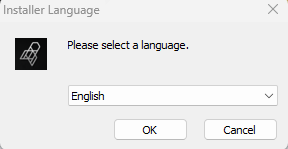
- Select English as the installation language.
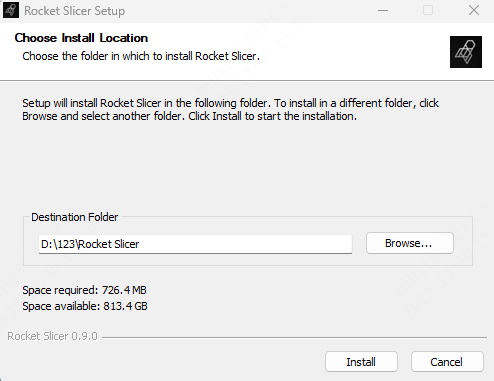
- Click Install and the software will be installed in the default directory.
If you wish to specify an alternative installation directory, click Browse and select the appropriate folder.
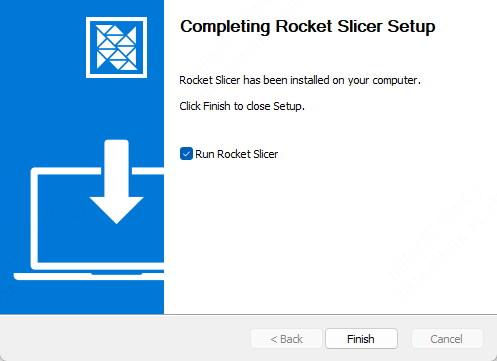
- After installation, click Finish or double-click the software icon on the desktop to launch the application.
¶ Installing Rocket Slicer on MacOS
-
Click the link Rocket Slicer to visit the official website.
-
Select For MacOS and download the installation package.
-
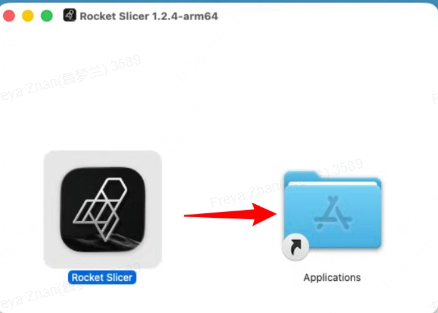
Double-click the downloaded
.dmgfile, then drag the Rocket Slicer icon into the Applications folder.
-
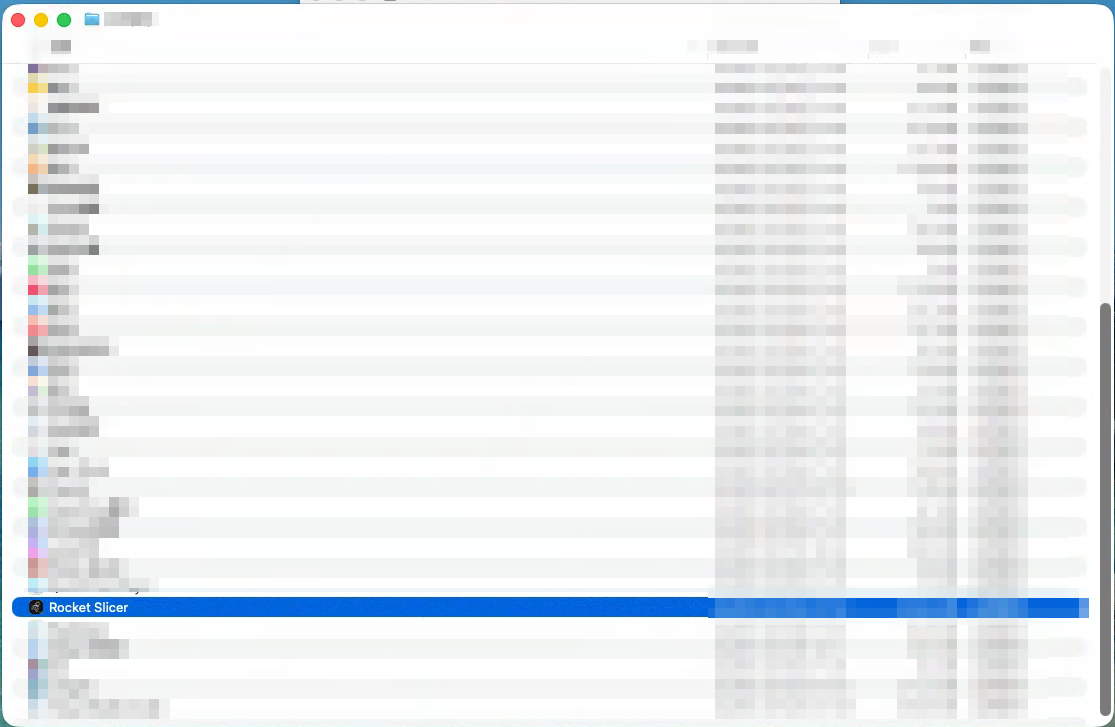
Open the Applications folder, find Rocket Slicer, and double-click it to launch the application and enter the welcome page.
-
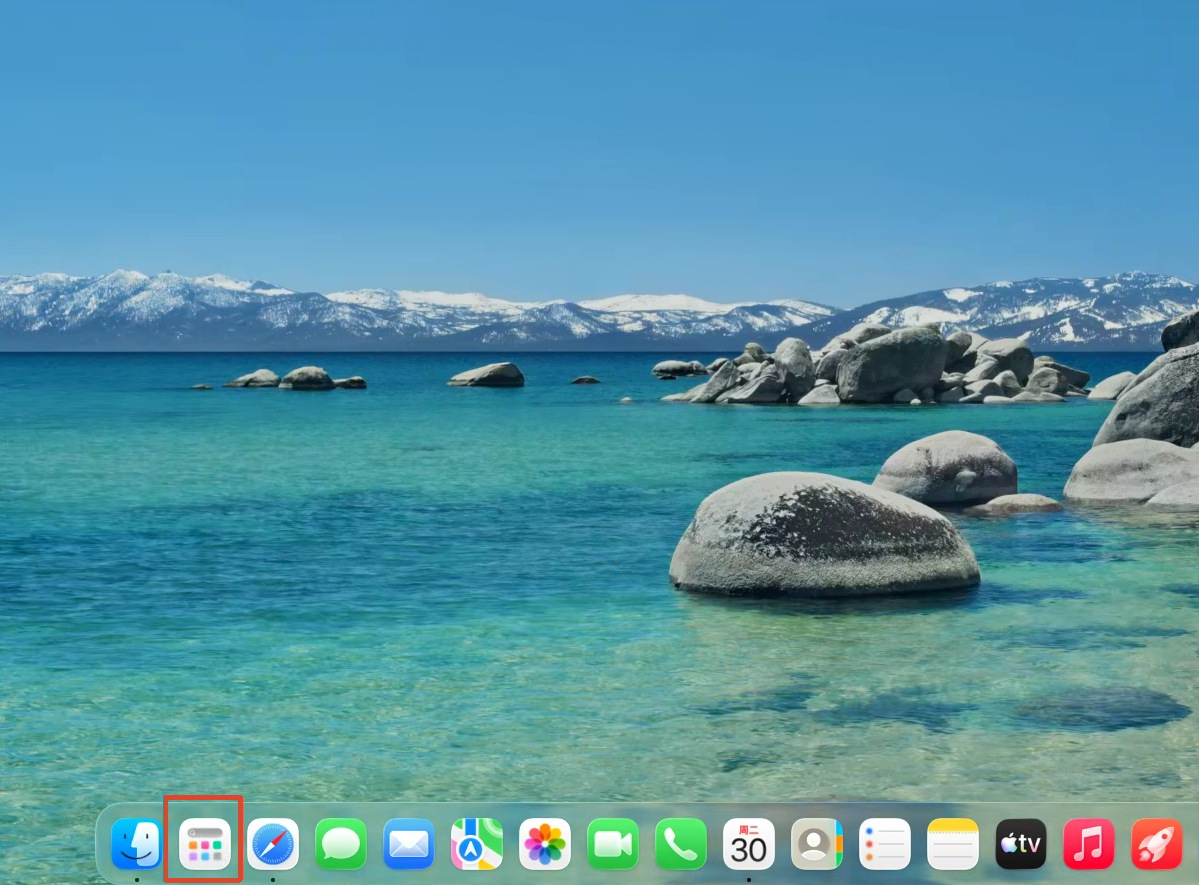
For future use, you can find Rocket Slicer in the Dock bar at the bottom of the screen or in the Applications folder, and double-click the icon to start the software.
¶ Logging In to the Slicer
- Double-click the software launch the program.
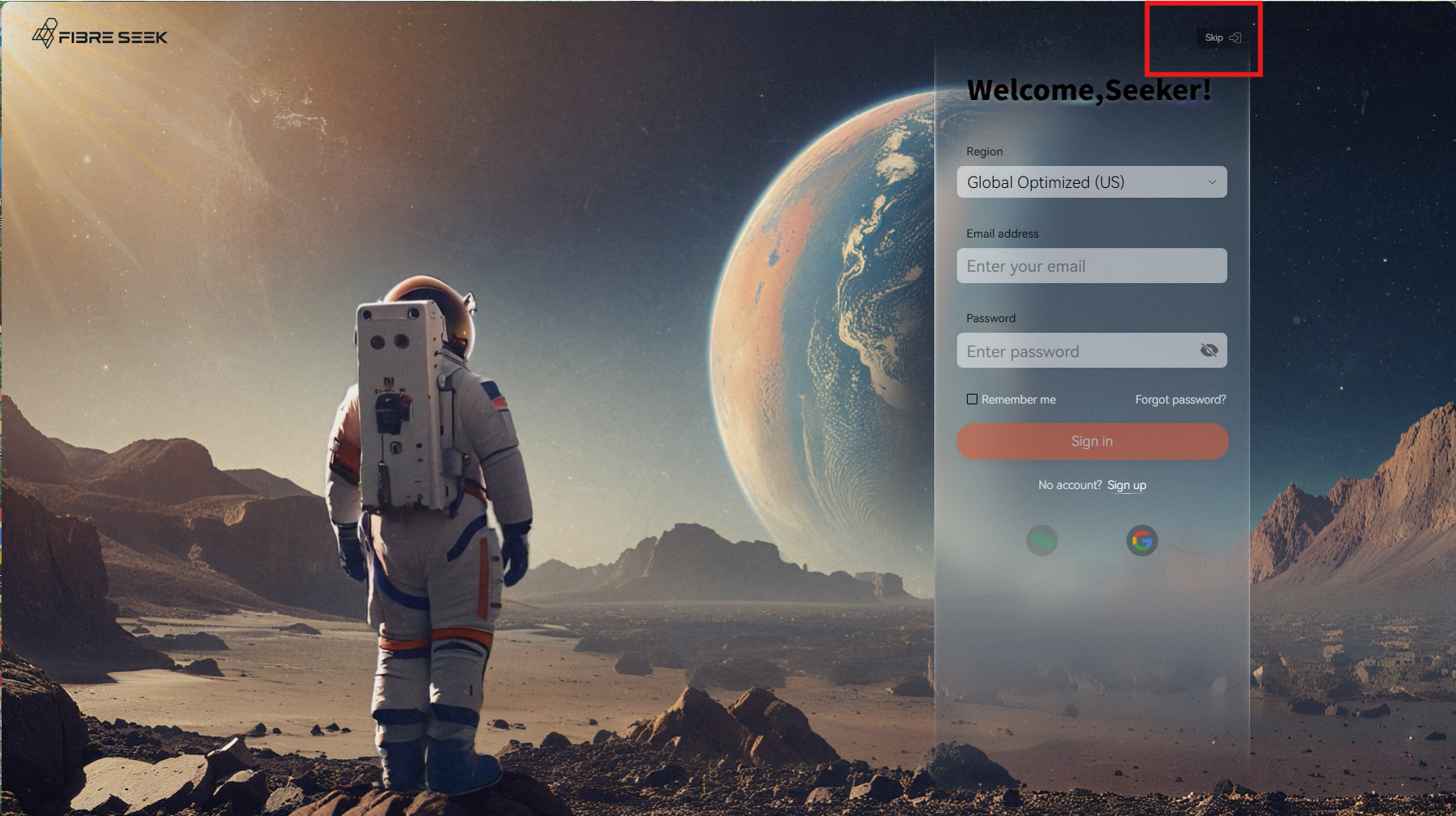
- If you have not logged in, you can skip the startup animation by clicking Skip.
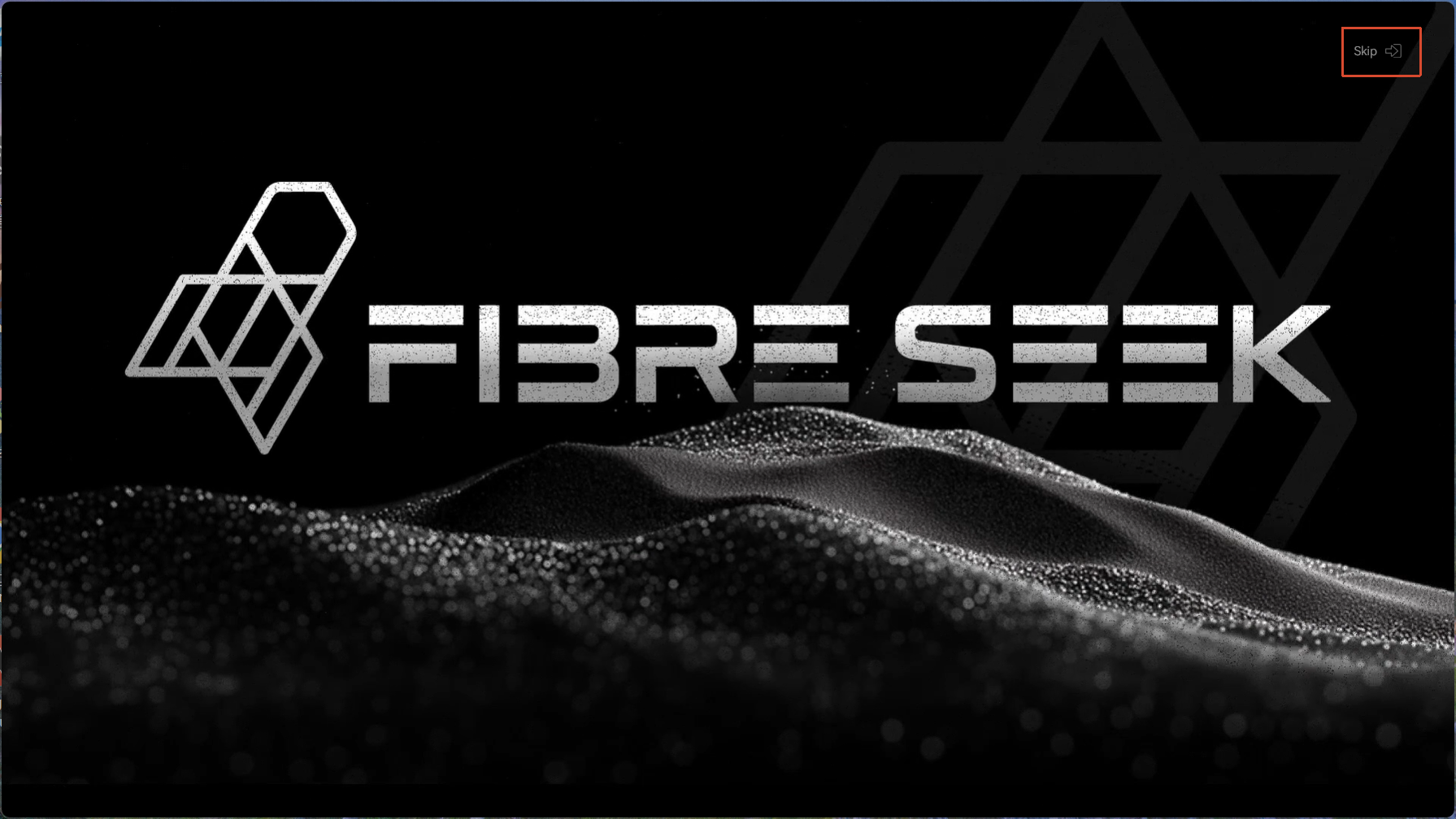
- After skipping or finishing the animation, the system will automatically enter the login page.
- Select Global Optimized(US) in the Region field.
- Enter your email and password to log in to the software.
If you do not have an account, please register on the Sign Up page.
- Click Sign Up to go to the Sign Up page.
- Please ensure the password is at least 8 characters long, does not contain spaces or consecutive numbers or characters, and includes both uppercase and lowercase letters and numbers.
- By creating an account, you agree to the Terms of Service and Privacy Policy.
-
If you select Remember Me, the startup animation will no longer display on subsequent launches.
-
(Optional): You can also log in to the software with your Google account.
a. Click in the right corner.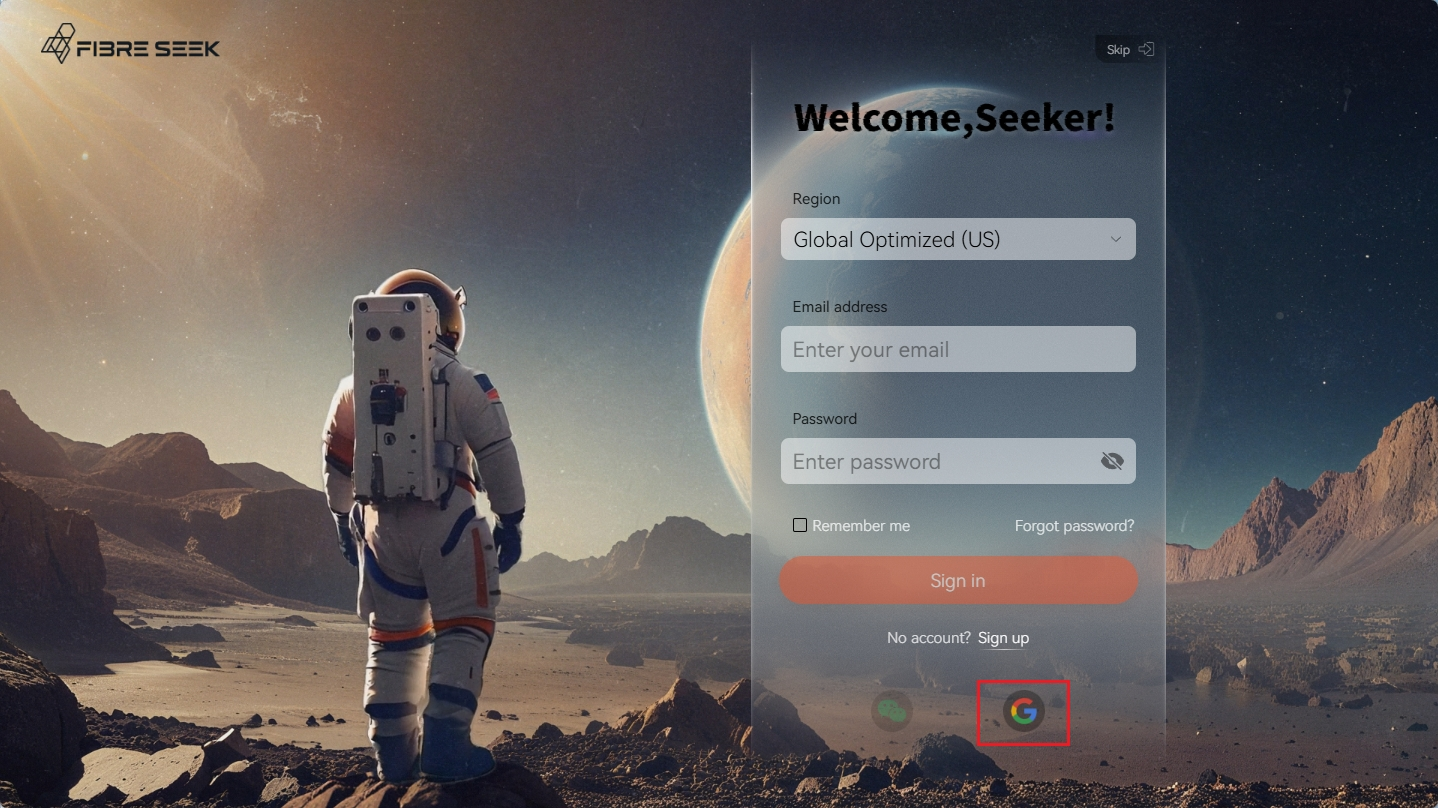
b. Enter your Gmail address or phone number and click Next.
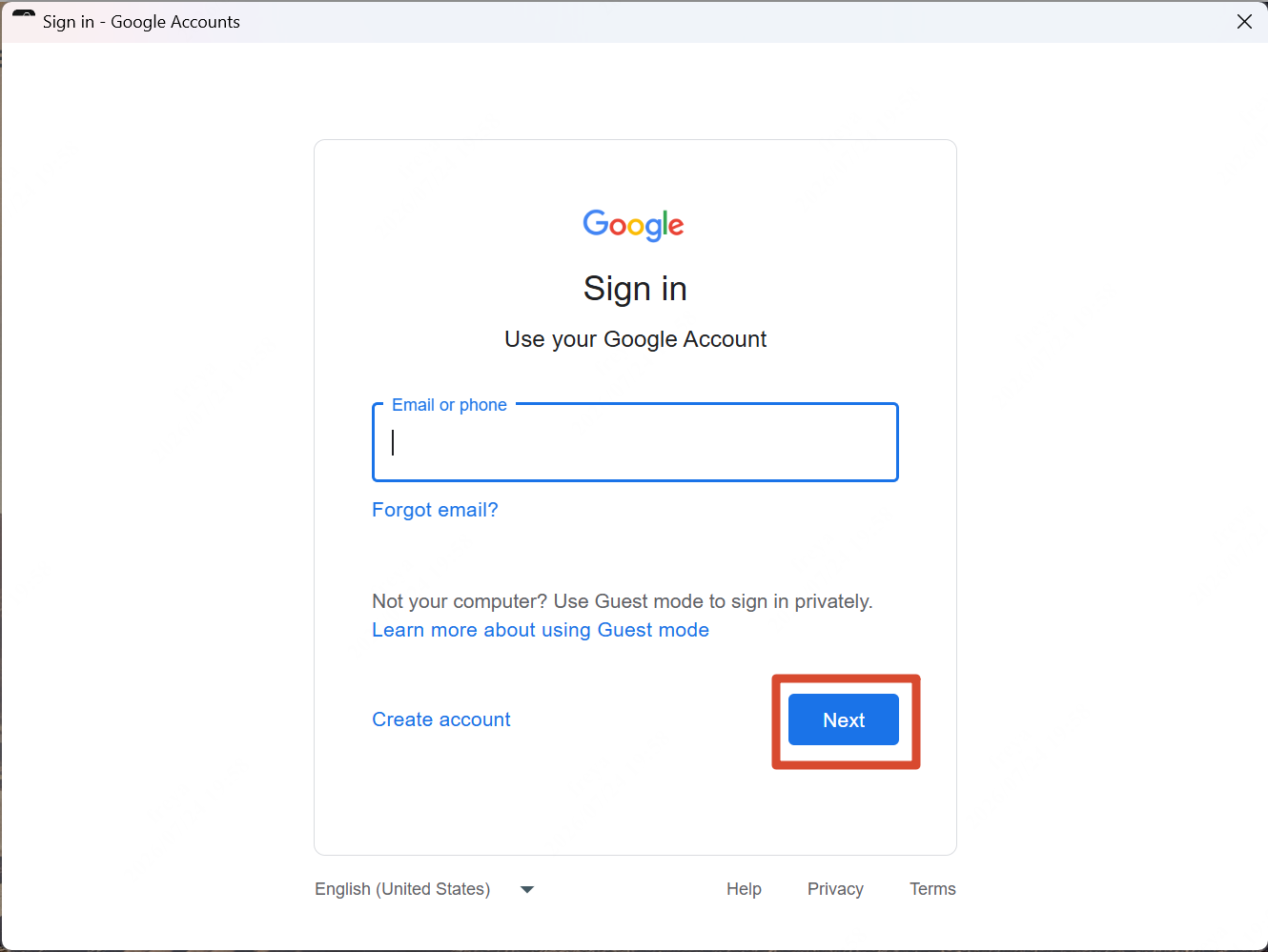
c. Enter your password and click Next.d. Follow the prompts to finish logging in.
-
Click Sign in.
-
(Optional) Click Skip on the login page to log in as a guest. Cloud-related operations are not available in guest mode.
¶ Connecting the Printer
There are two methods to connect the printer. Follow the steps to complete connection.
¶ General Connection
¶ Connecting via Local LAN Network
-
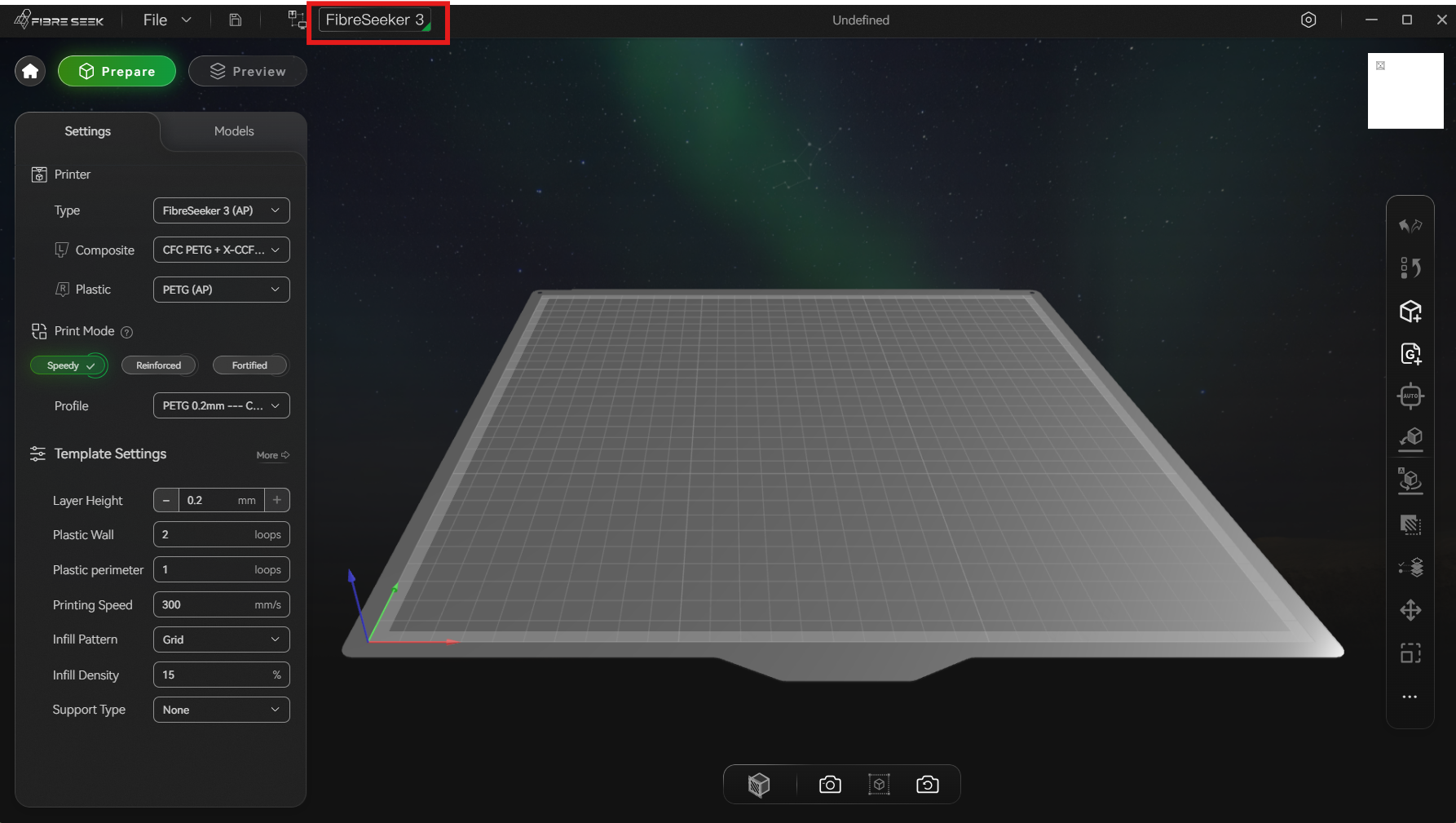
Click
 in the Device List area next to
  in the top toolbar and select the target printer. The default printer is FibreSeeker 3.
-
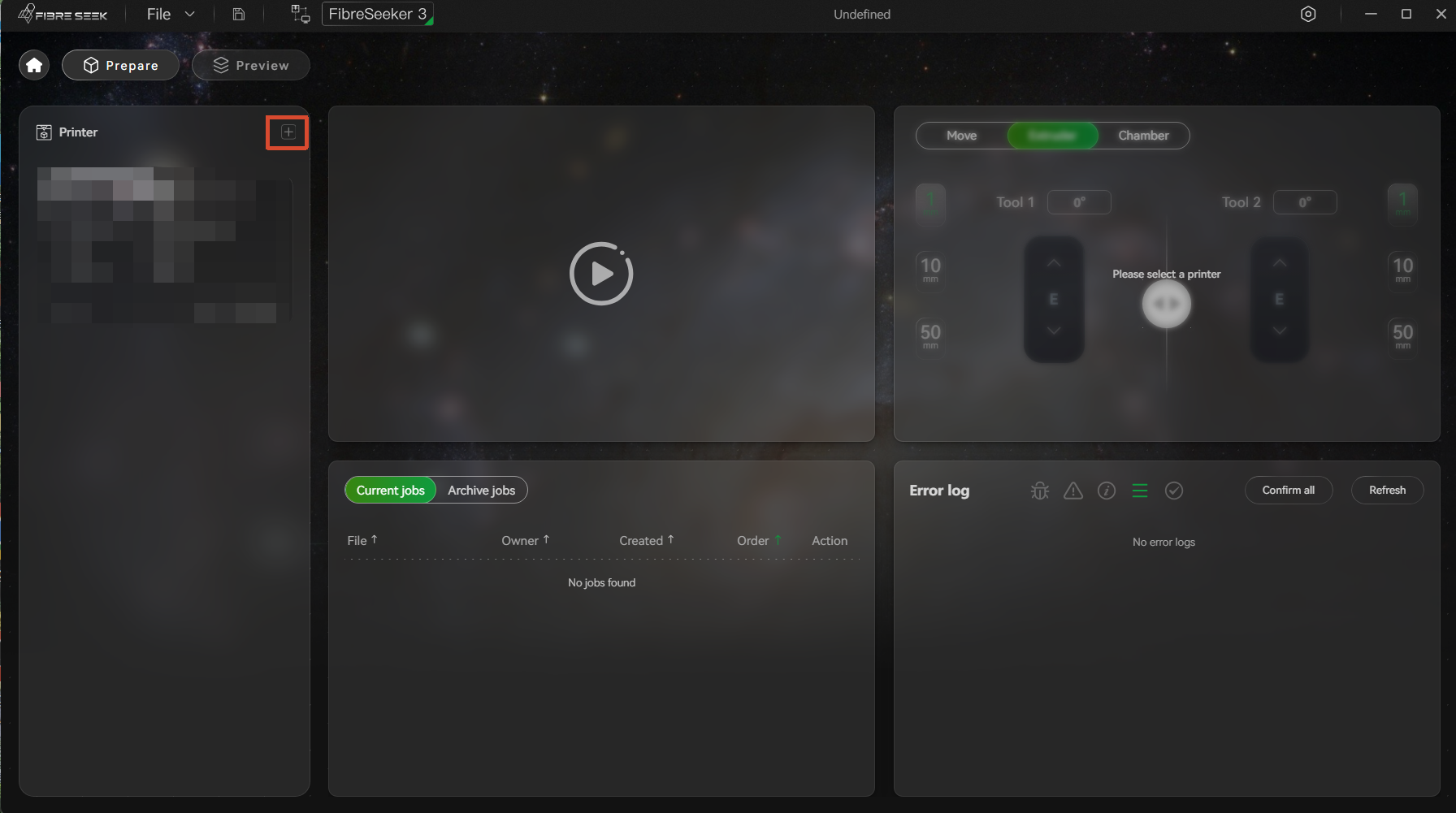
Click
 next to the Printer area to add your printer.
-
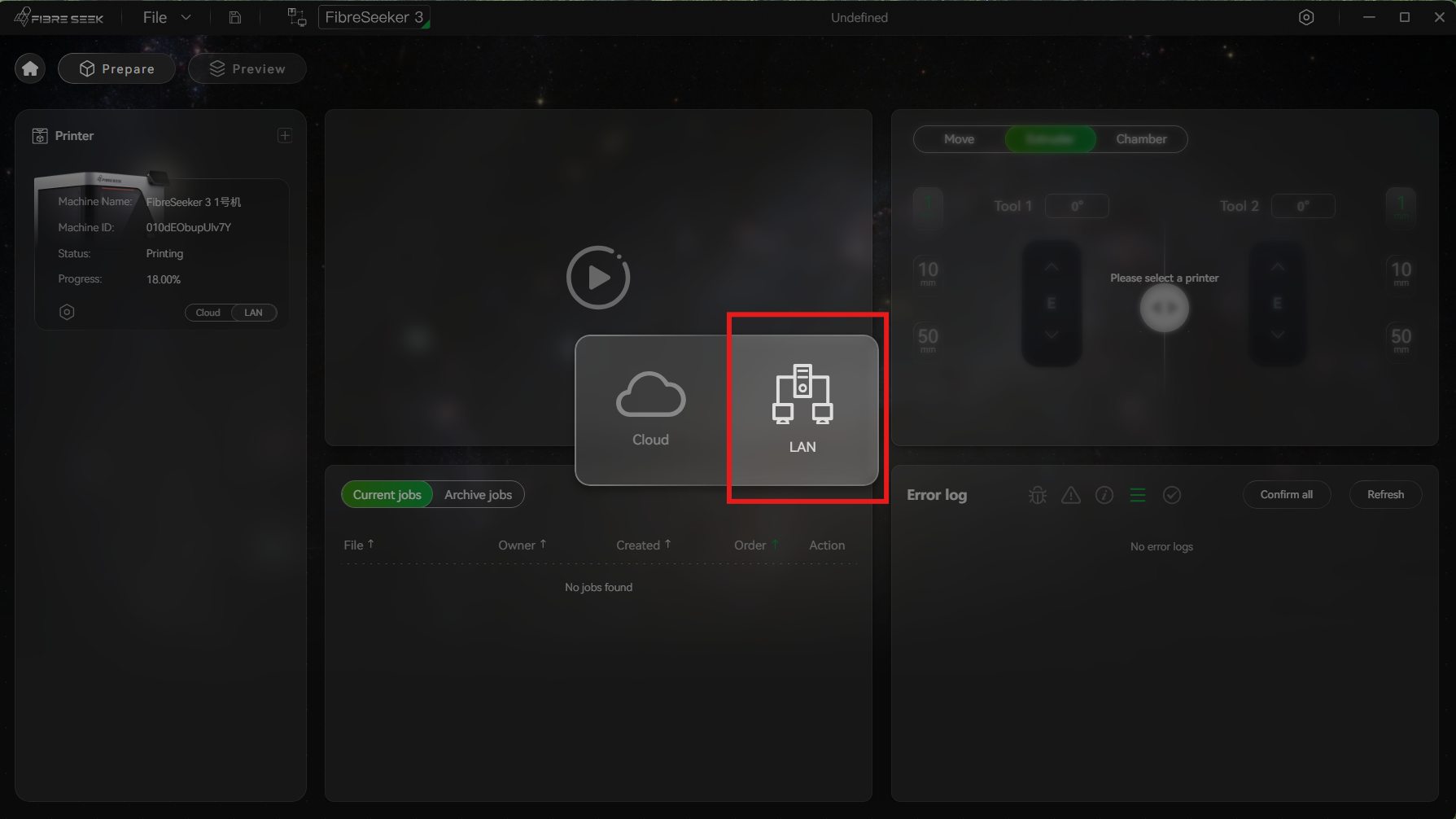
Select LAN in the pop-up window.
-
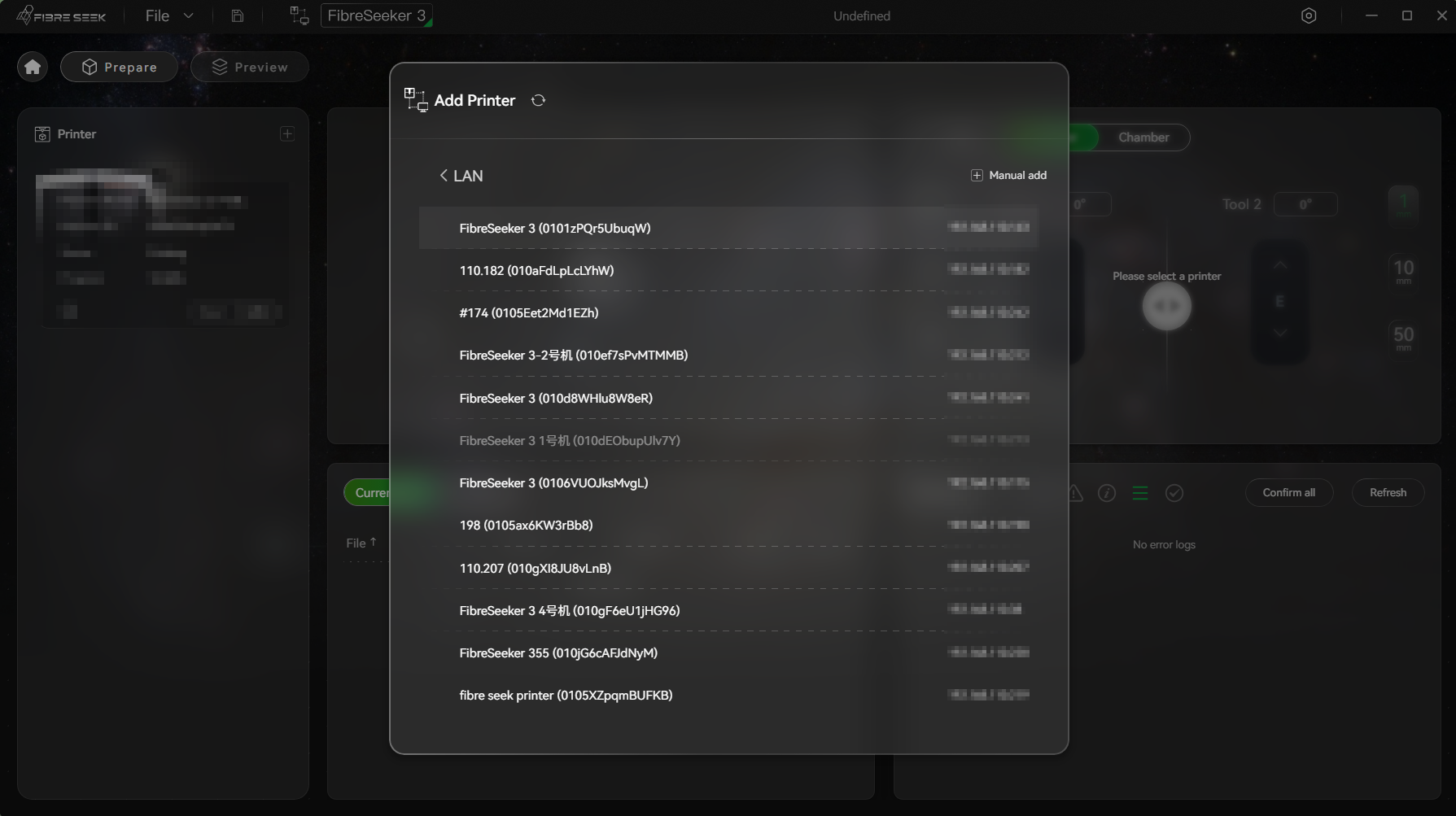
Select the target printer on the Add Printer page.
-
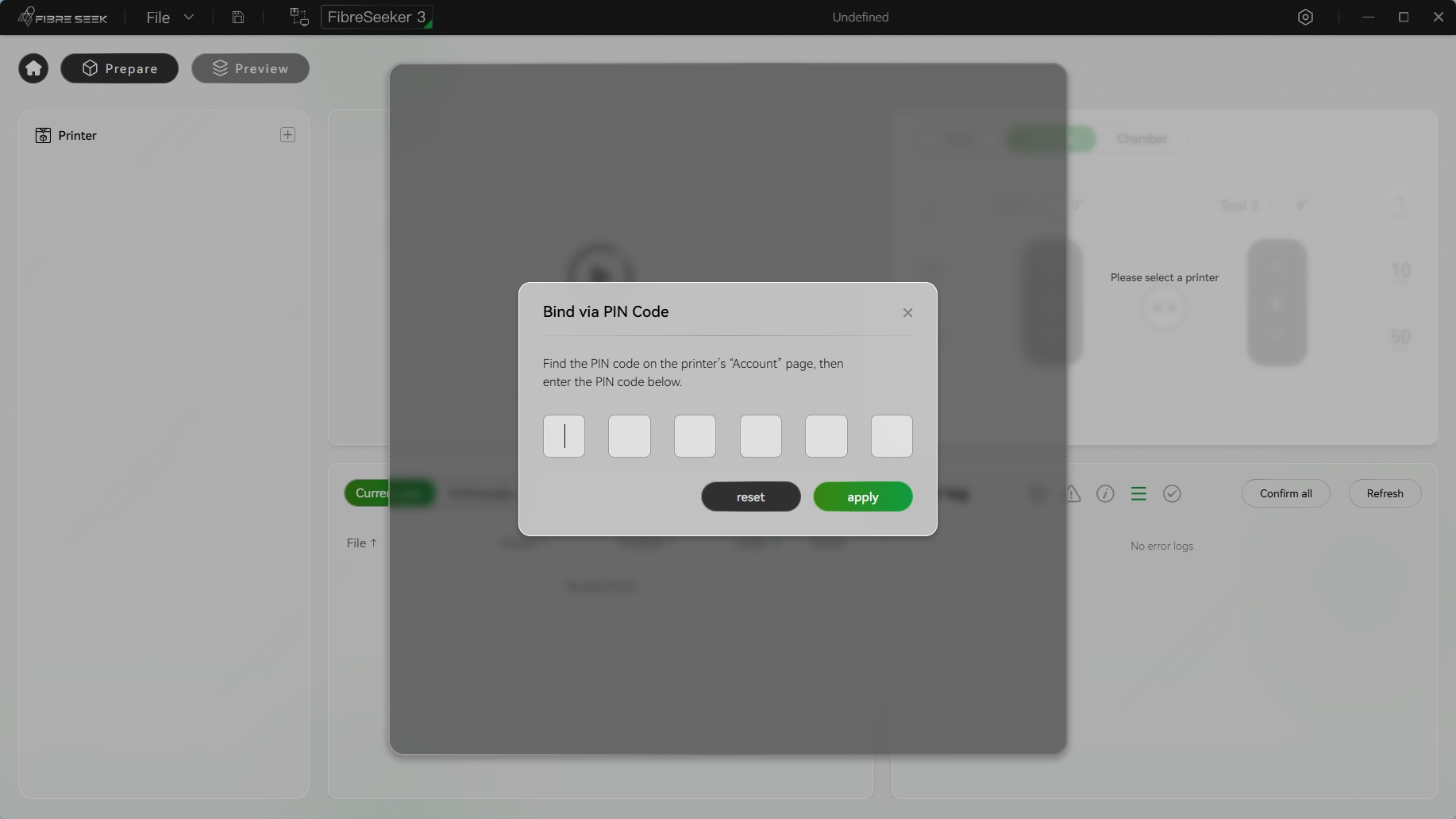
Enter the PIN code of the printer in the Bind via PIN Code window.
-
Click Apply.
-
After binding, a success message PIN code bound successfully pops up, and the printer appears in the left Printer area.
The LAN communication may be blocked by the computer system firewall or corporate network firewall. If you fail to search or bind the printer, contact your company's IT team to check firewall interception and add relevant rules to the firewall whitelist.
¶ Connecting via Cloud
-
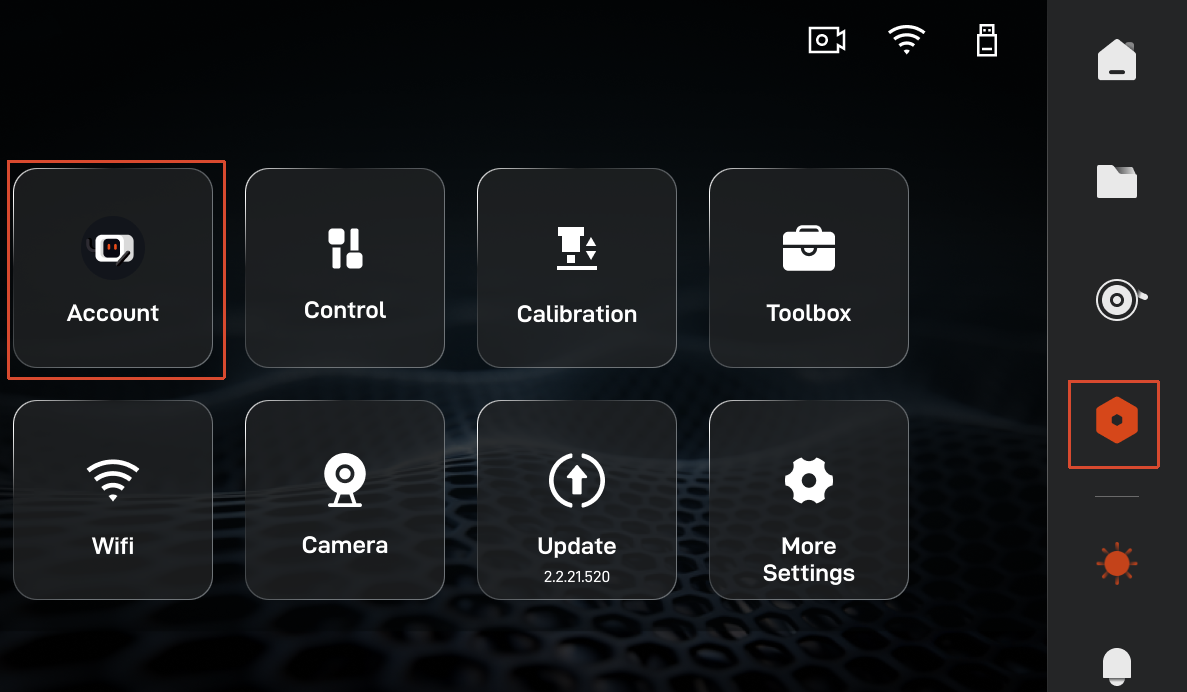
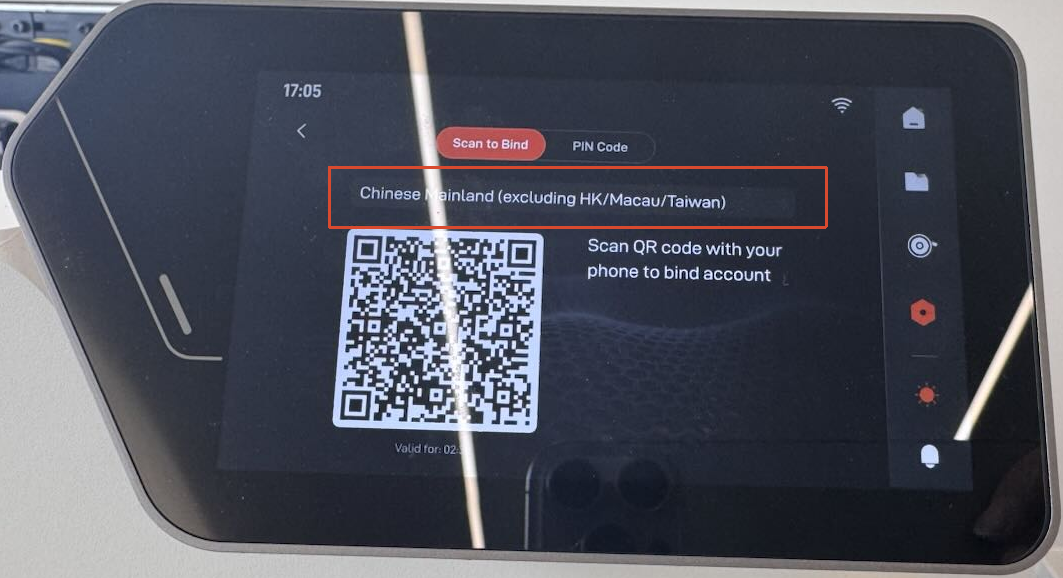
On the printer touchscreen, select
 > Account, which will automatically open the Scan to Bind page.
-
Select your region, then scan the QR code with your mobile phone to access the login page.
-
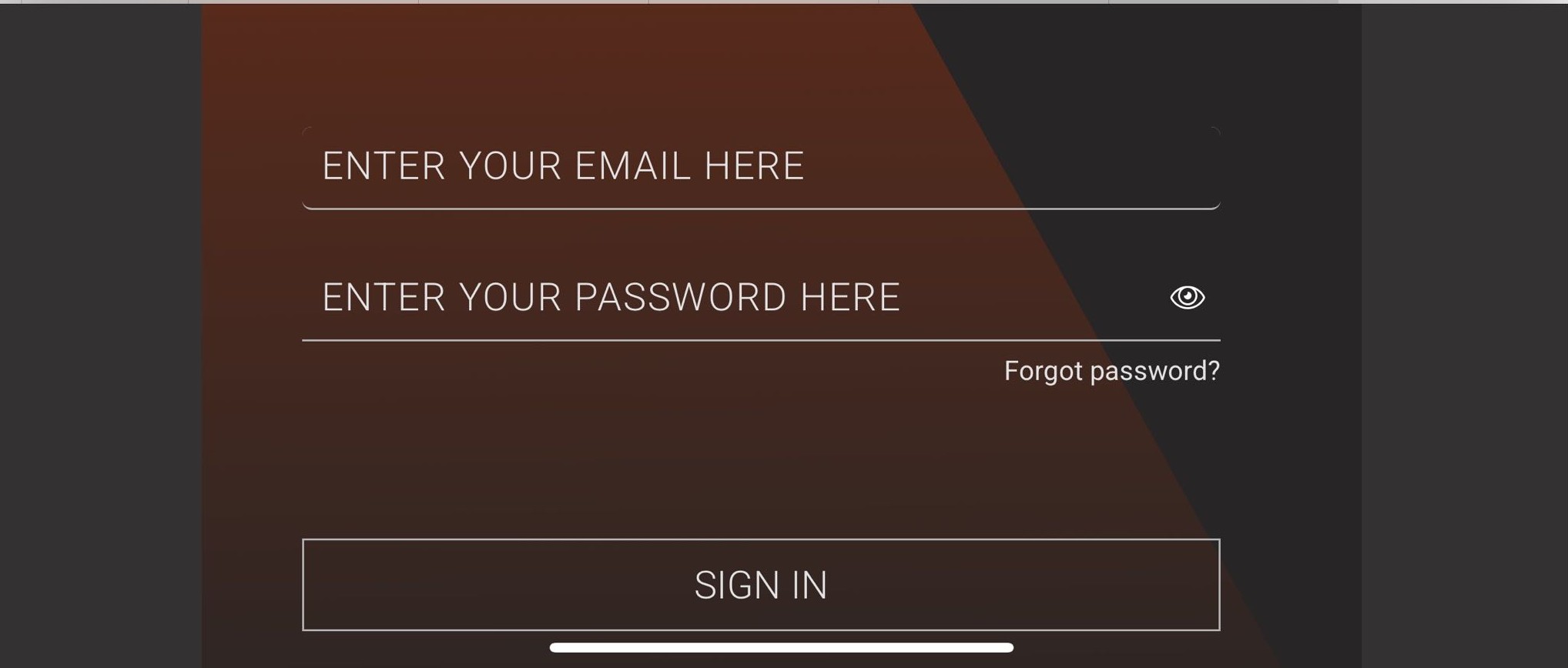
Enter yor email and password and click SIGN IN.
-
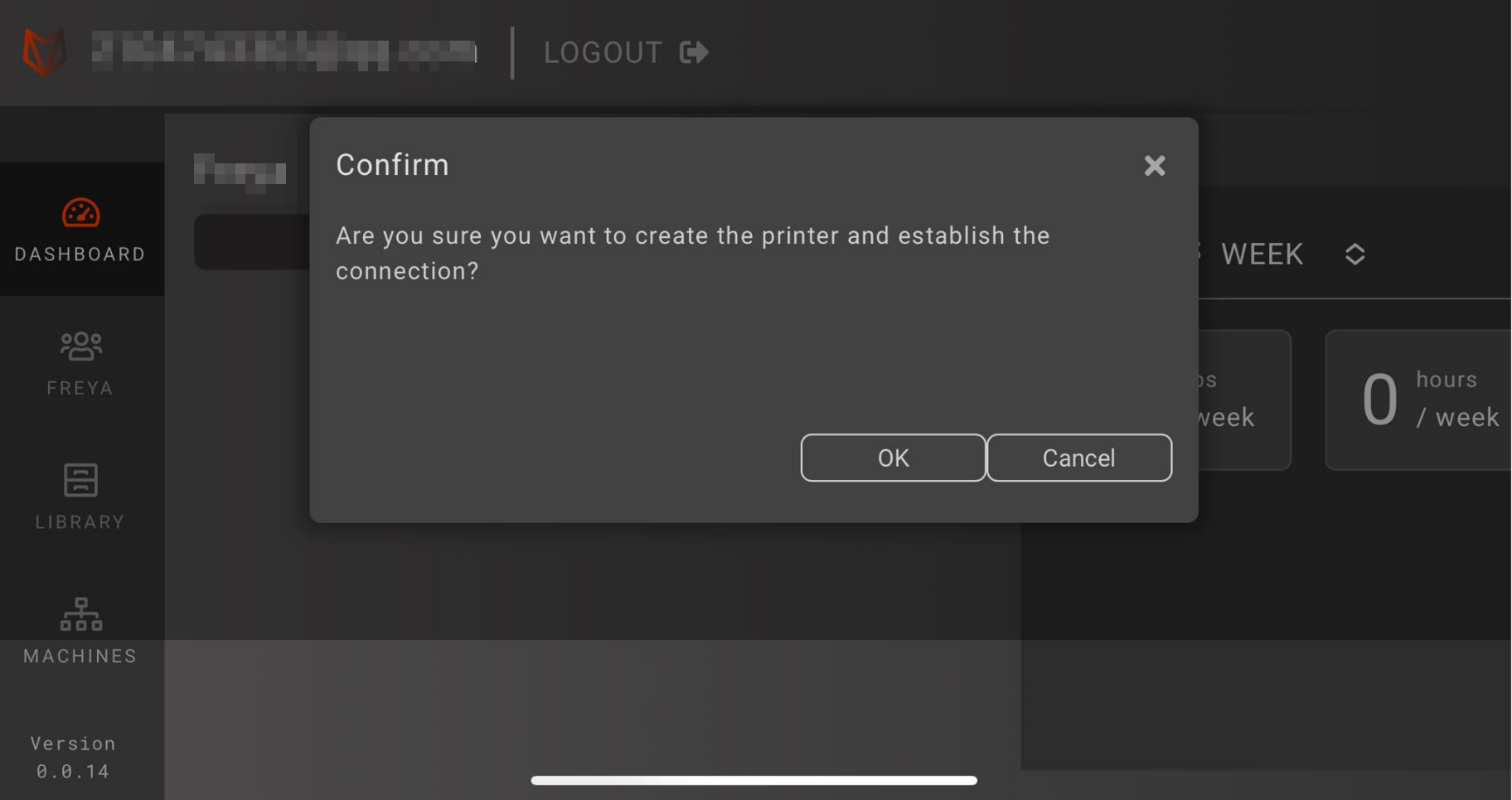
Click OK on the phone pop-up confirmation window to finish binding the printer to your cloud account.
-
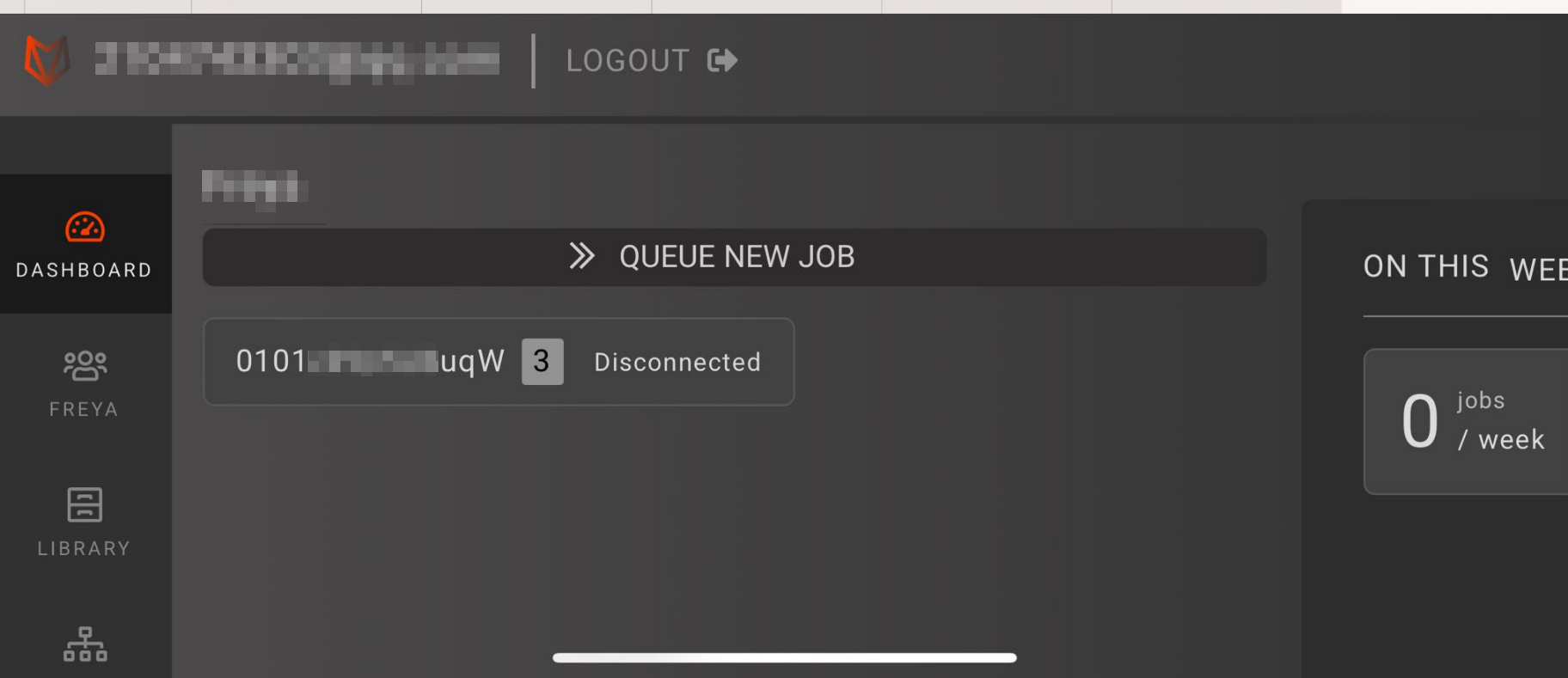
The printer will be bound to your cloud account successfully.
-
Launch Rocket Slicer, log in using the identical email account you just signed into on your mobile phone, then click Sign in.
-
Click FibreSeeker 3 to open the Remote Control interface.
-
You can view full synchronized printer details within the Device List panel on the left sidebar.
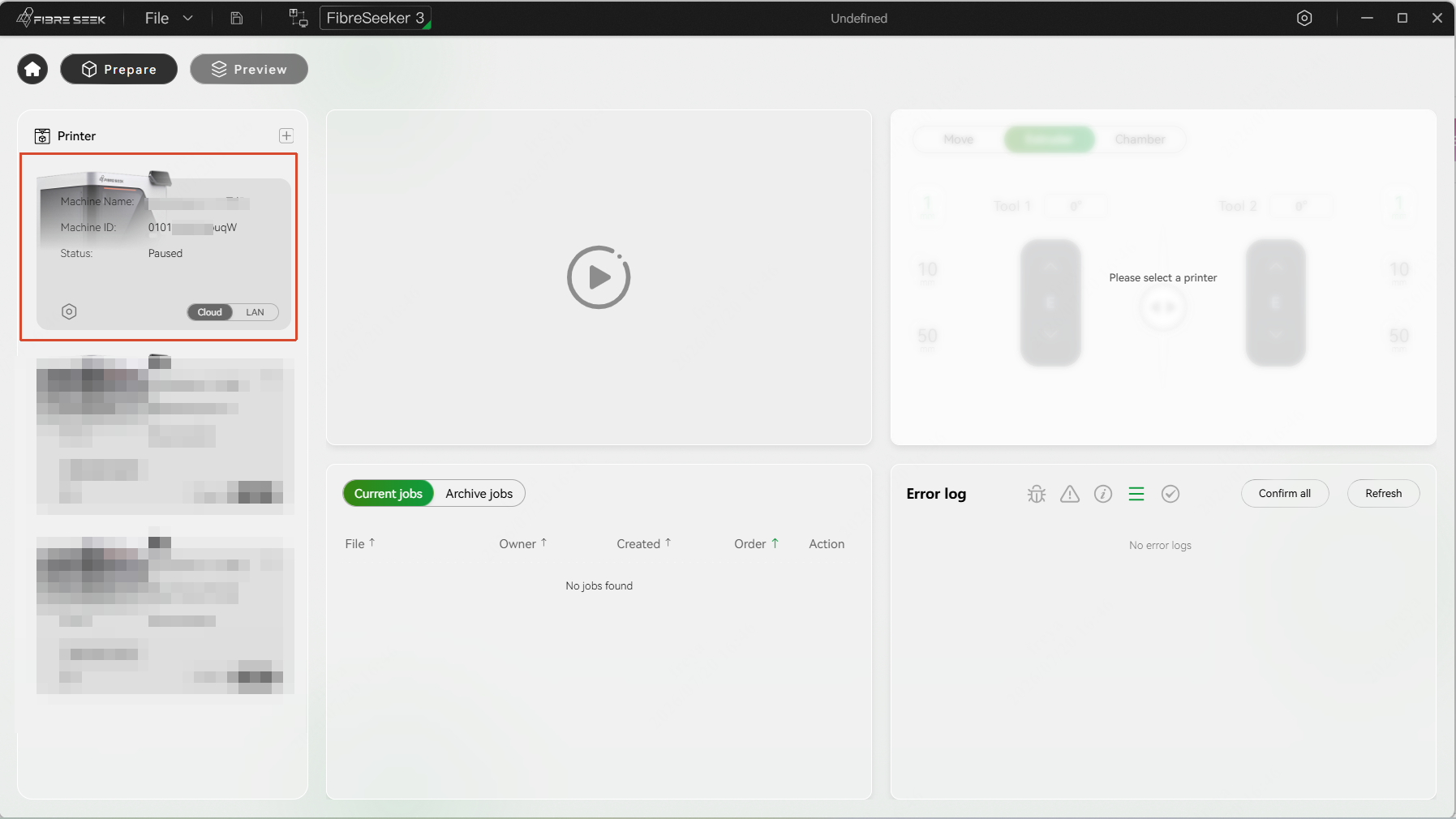
Printer information will sync automatically between your mobile phone and Rocket Slicer desktop client, as long as you log in with the same email cloud account on both devices.
¶ Adding the Printer Manually
If the printer is not found automatically on the Add Printer page, you can add it manually by entering its IP address.
- Click Manual add on the Add Printer page.
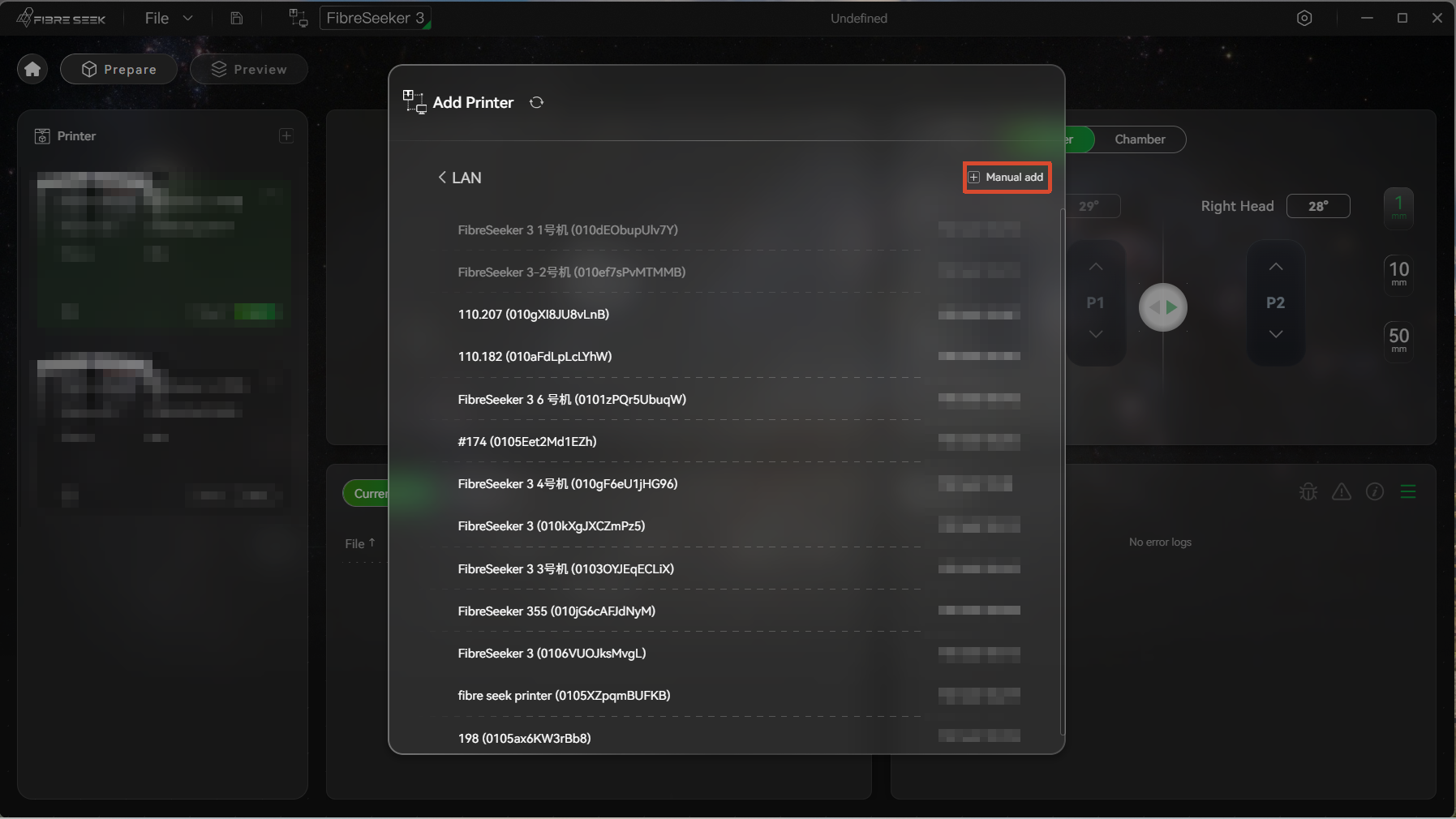
- On the printer's home screen, tap the Wi‑Fi icon at the top right to find its IP address, and enter its IP in the Manual add pop-up window.
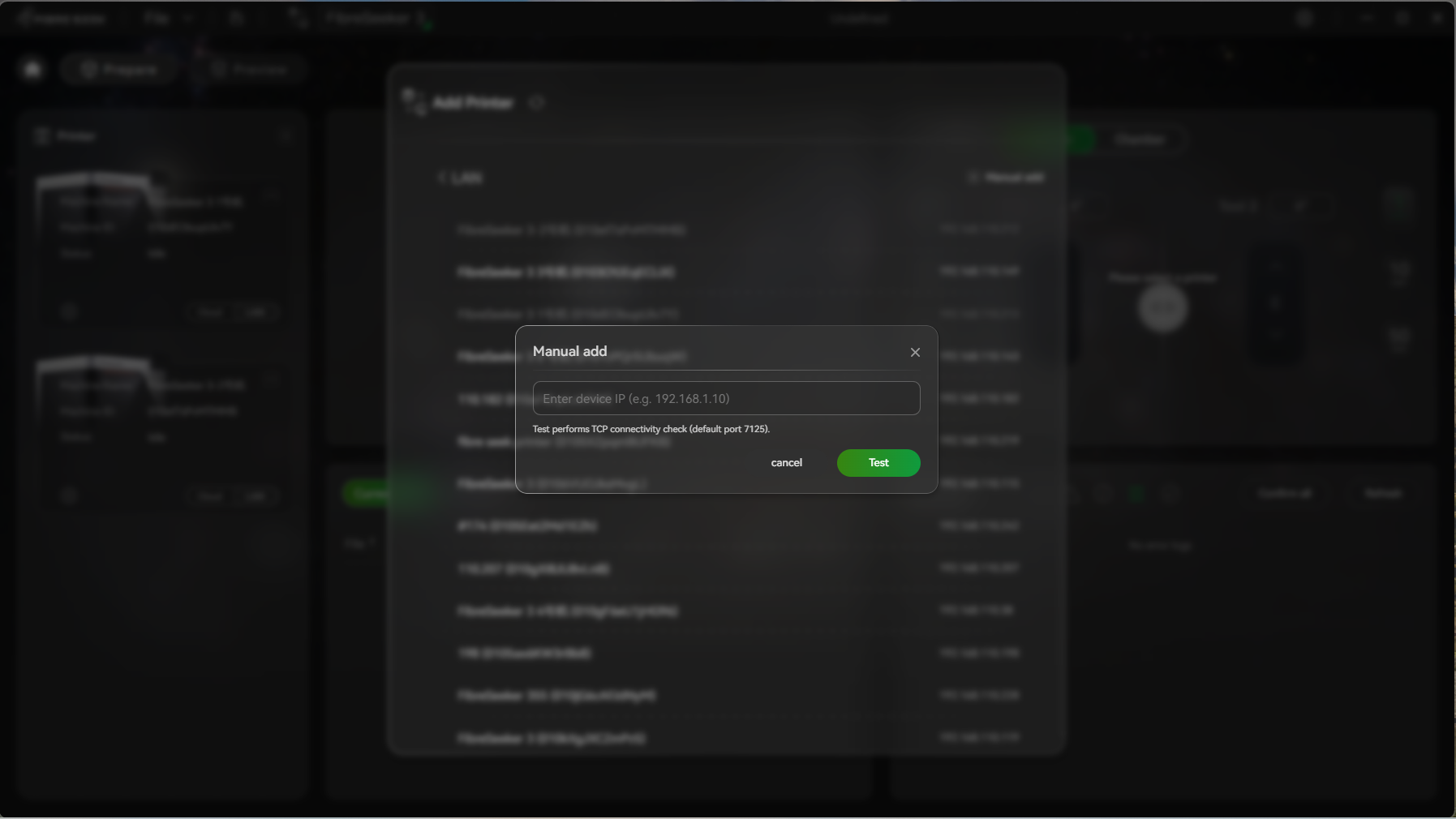
- Click Test, and once it succeeds, a pop‑up will show "Test passed, please bind the PIN."
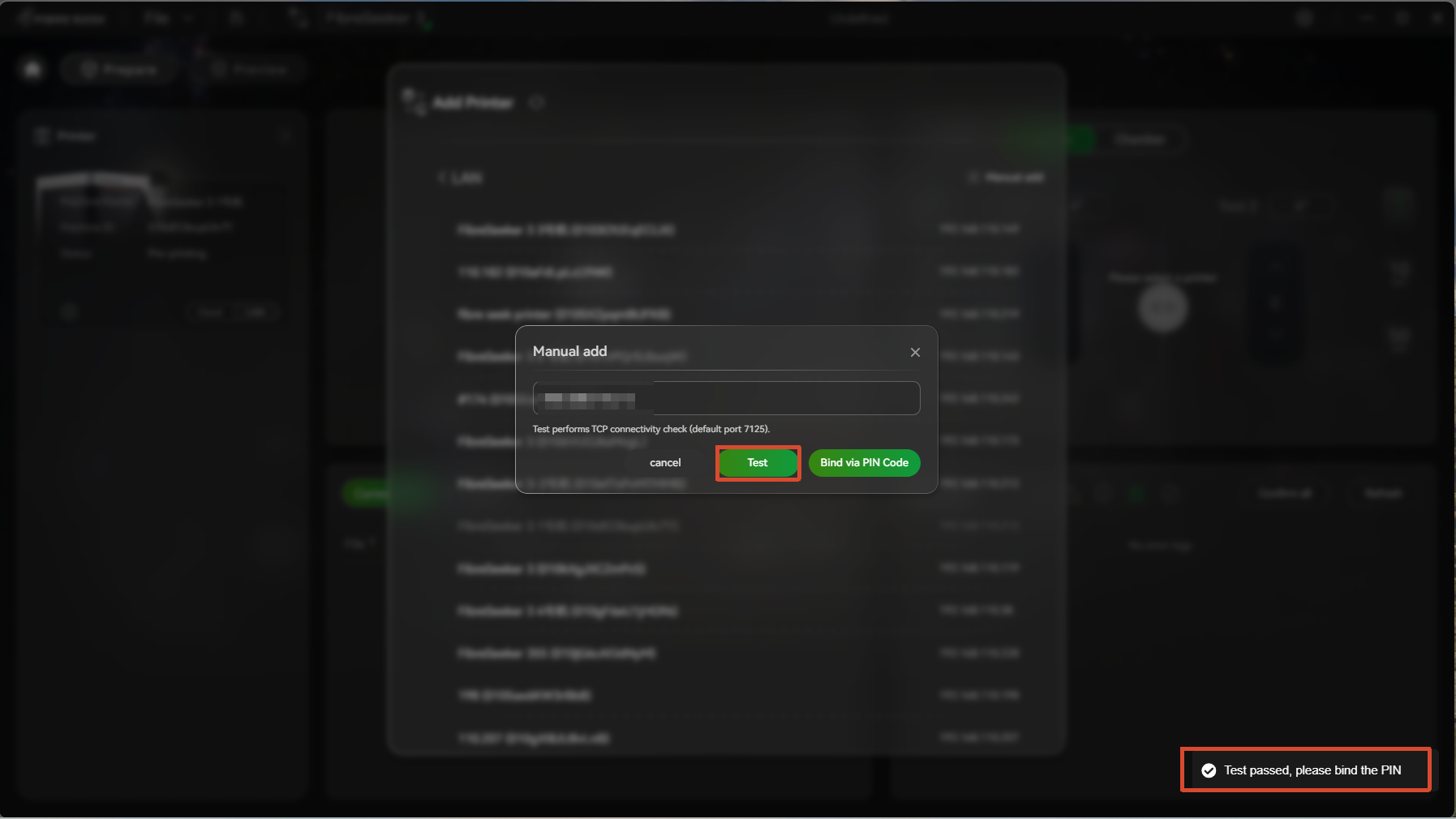
- Click Bind via PIN Code to enter the corresponding page, and enter the PIN code of the printer.
- Click Apply.
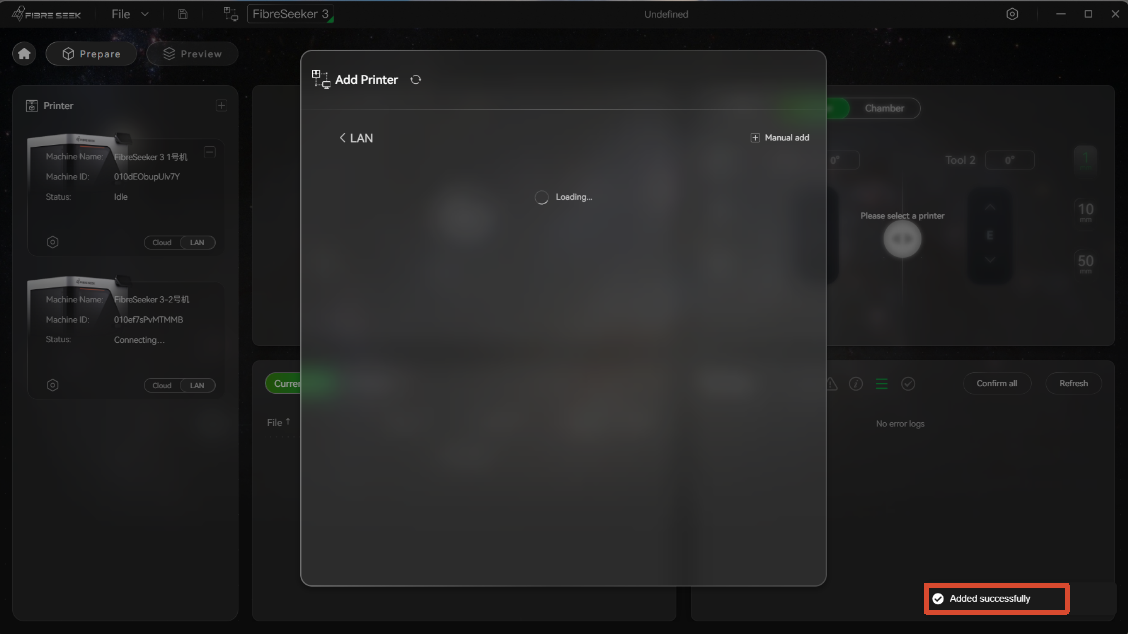
- A pop‑up confirms "Added successfully," and the printer appears in the "Printers" section on the left.
¶ Feature Introduction
¶ Toolbar
| Icon | Function | Description |
|---|---|---|
 |
Add models | Import models. Supported file formats: .stl, .step, .stp, and .3mf. |
 |
Undo / Redo | Go back to the previous step. |
 |
Undo to | Revert to a specified previous step. |
 |
Select a GCode File | Select a G-code file and preview settings such as plastic/fibre path, printing time, cost, inner and outer wall infill, etc. |
 |
Auto-layout | The software automatically identifies multiple models and arranges them according to spacing settings. |
 |
RotatePartByFace | Select a face of the model to place it flat on the build plate. |
 |
Auto orient | The software automatically determines the optimal orientation for the model. |
 |
Mask Mode | Add a mask by drawing a box or cylinder over specific areas of the model. |
 |
Move models | Enter coordinates to control the mask position. |
 |
Resize models | Choose manual, relative (proportional), or absolute (numeric) mode as needed and enter X/Y/Z values to scale the model. |
 |
Rotate models | Manually rotate the model or enter X/Y/Z angle values for precise control. |
|
Clone models | Clone the selected model. |
 |
Brush Mode | Drag the mouse to draw Z-seam positions, hiding inter-layer seams on non-visible surfaces or structural corners of the model to reduce post-processing difficulty and improve finished product quality. |
 |
Layup mode | Customize the printing path layer by layer to meet different requirements for infill direction, line patterns, and more across layers. |
 |
Measure | Click with the mouse to confirm the start and end points and quickly obtain the precise distance between two points, facilitating dimension checking and model verification. |
¶ Mask Mode
This feature allows you to add masks to specific areas of the model to precisely control the placement and quantity of fibre-reinforced materials. It also supports control over support structures: you can directly specify areas on the model where supports must be generated, or completely prohibit support generation.
Draw a mask
-
Click
to import a model in the right toolbar. -
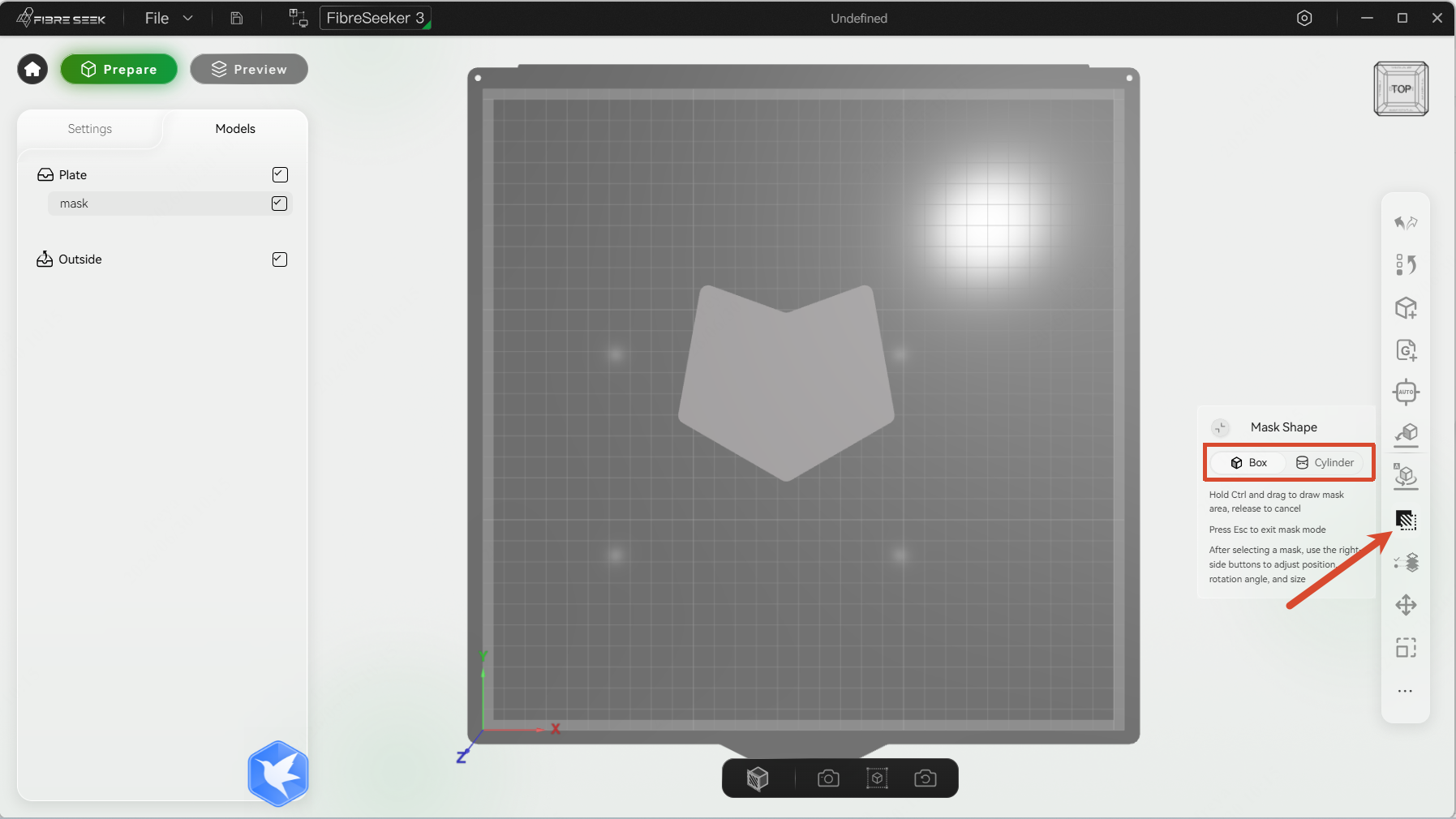
Choose the model and click
to select a box or cylinder as the mask shape.
-
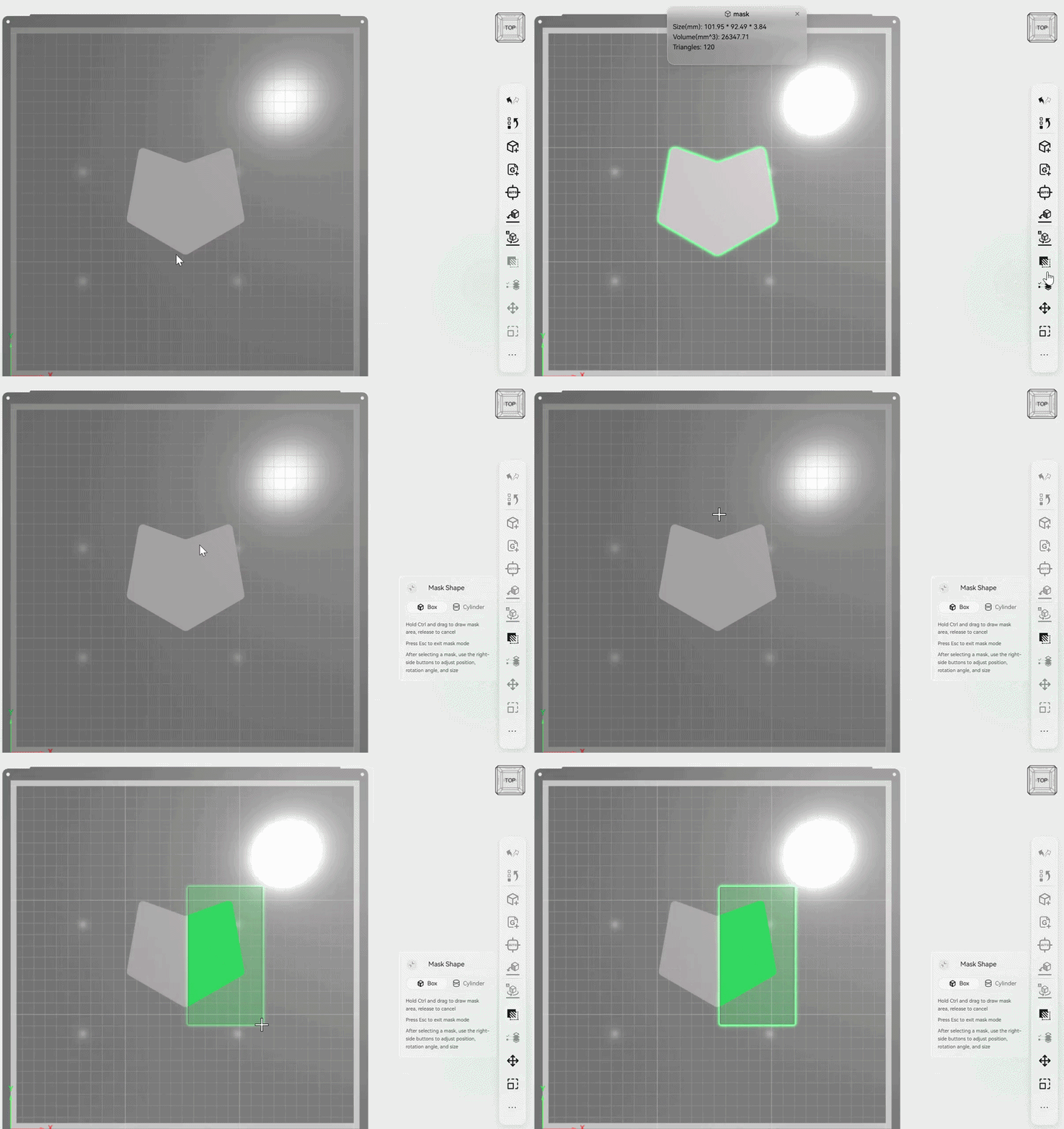
Press and hold the Ctrl key. Once the cursor becomes a plus sign (+), click and hold the left mouse button and drag to create the mask.
-
(Optional): When multiple masks are drawn, click
 to the right of a mask to adjust its priority.
 -
(Optional): Click
 to access the following operations:
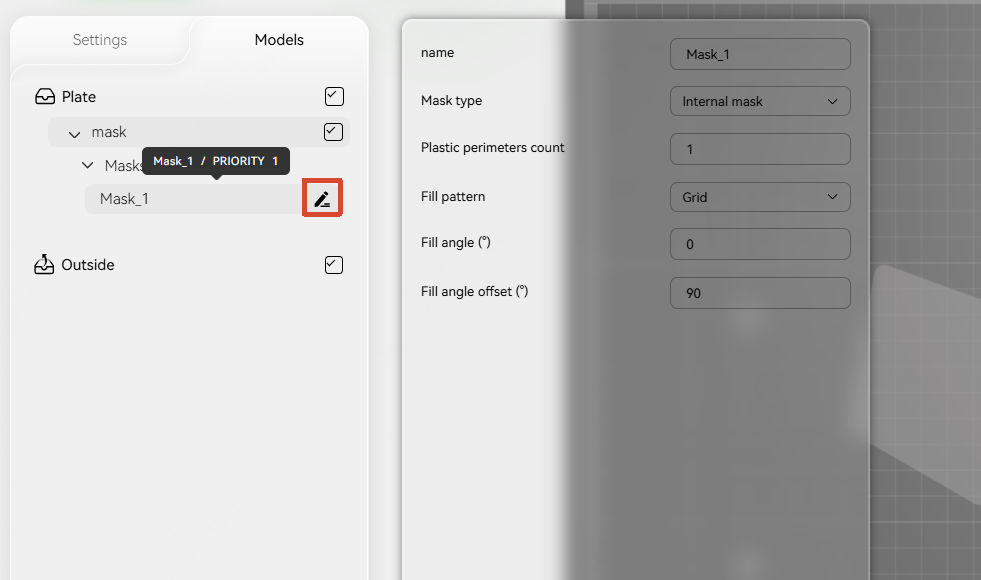
- name: Modify the name of the mask.
- Mask type:
-
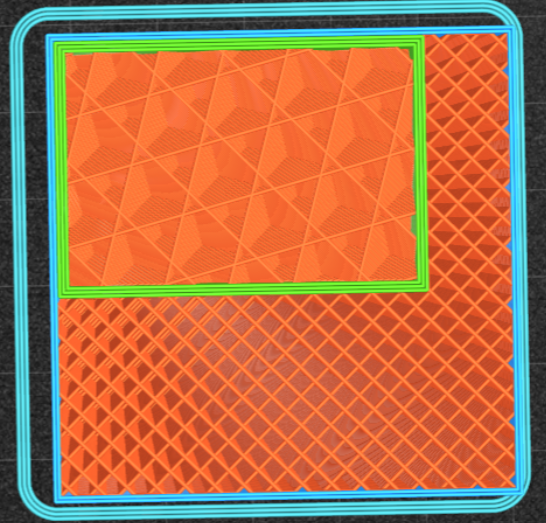
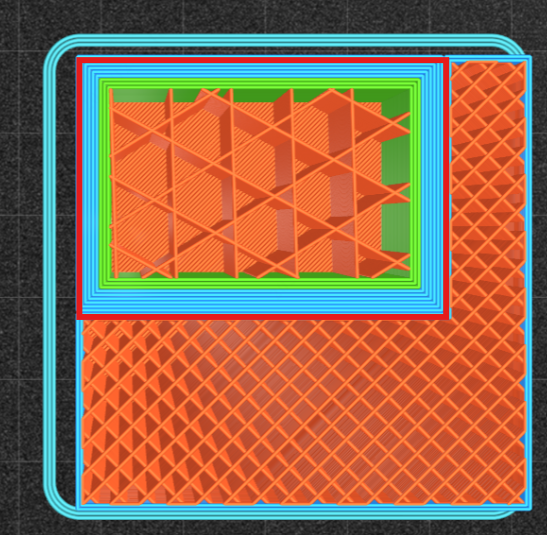
Internal mask: The internal mask defines the internal structure of the part within the masked area. You can set the number of outer contour lines (shells) for this area. All regions outside the mask will be printed according to the global parameters of the profile. All internal mask bodies will share the same outer shell as the base part when printed.
-
Full mask: The full mask creates an independent region inside the model, where print parameters (including outer wall layers, number of contour shells, and top/bottom solid layers) can differ from the base model. In Enhanced Mode, you can enable or disable reinforced outer contours and set their count, and independently set the type and density of reinforced infill.
-
Support enhancer: Forces support generation in the specified area.
-
Support blocker: Prevents support generation in the specified area.
-
- Fill pattern: Selects the fill pattern for the mask, including grid, lines, triangles, etc. The actual patterns available are shown in the interface.
- Fill angle: Adjusts the angle of the fill pattern.
- Fill angle offset: Sets the incremental angle of the fill pattern per layer. For example, if the fill angle is 45° and this parameter is set to 30°, the first layer path will be 45°, the next layer path will increase by 30° to 75°, and so on.
-
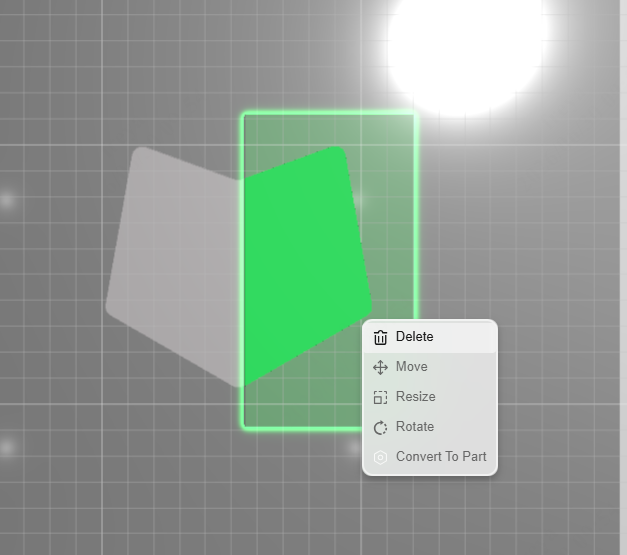
(Optional): Right-click the mask (or select it in the left model area and right-click) to access the following operations.
- Rename: Modify the name of the mask.
- Delete: Delete the mask.
- Move: Enter coordinates to control the model’s position.
- Resize: Select the desired mode (Manual, Relative, or Absolute) and enter X/Y/Z values to scale the mask. When the Uniform option is enabled, adjusting any single dimension will automatically scale the other two proportionally.
- Rotate: Choose angle or manual, then enter X/Y/Z values to set the rotation.
- Convert to Part: Converts the target mask into a new model that can be printed as either a cylindrical or rectangular model.
-
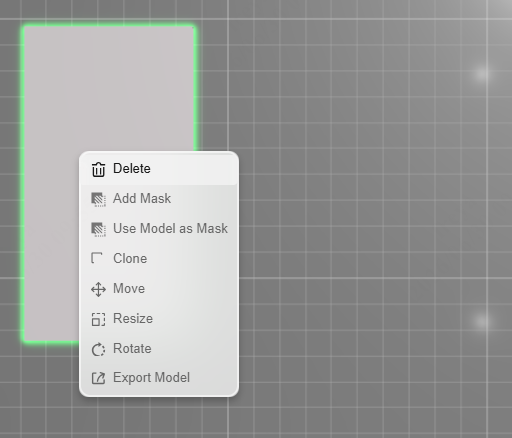
(Optional): After converting a mask to a model, right‑click it for the following operations:
- Delete: Deletes the converted model.
- Add Mask: Adds a custom mask. Supported file formats include .stl and .obj.
- Use Model as Mask: Selects another model to serve as the mask for this model.
This feature requires at least 2 models.
- Clone: Duplicates the selected model.
- Move: Modify the X/Y/Z values to move the mask to the desired position.
- Resize: Select manual, relative, or absolute mode as needed, and modify the X/Y/Z values to scale the mask. Enable Uniform so that changing any one value automatically adjusts the others.
- Rotate: Select angle or manual mode, and adjust the X/Y/Z values to set the mask rotation.
- Export Model: Exports the model as an .stl file.
¶ Layup Mode
This feature allows you to customize print paths on a per‑layer basis to meet different requirements for infill direction, line pattern, and more.
Steps
- Click in the right toolbar and select Add layup.
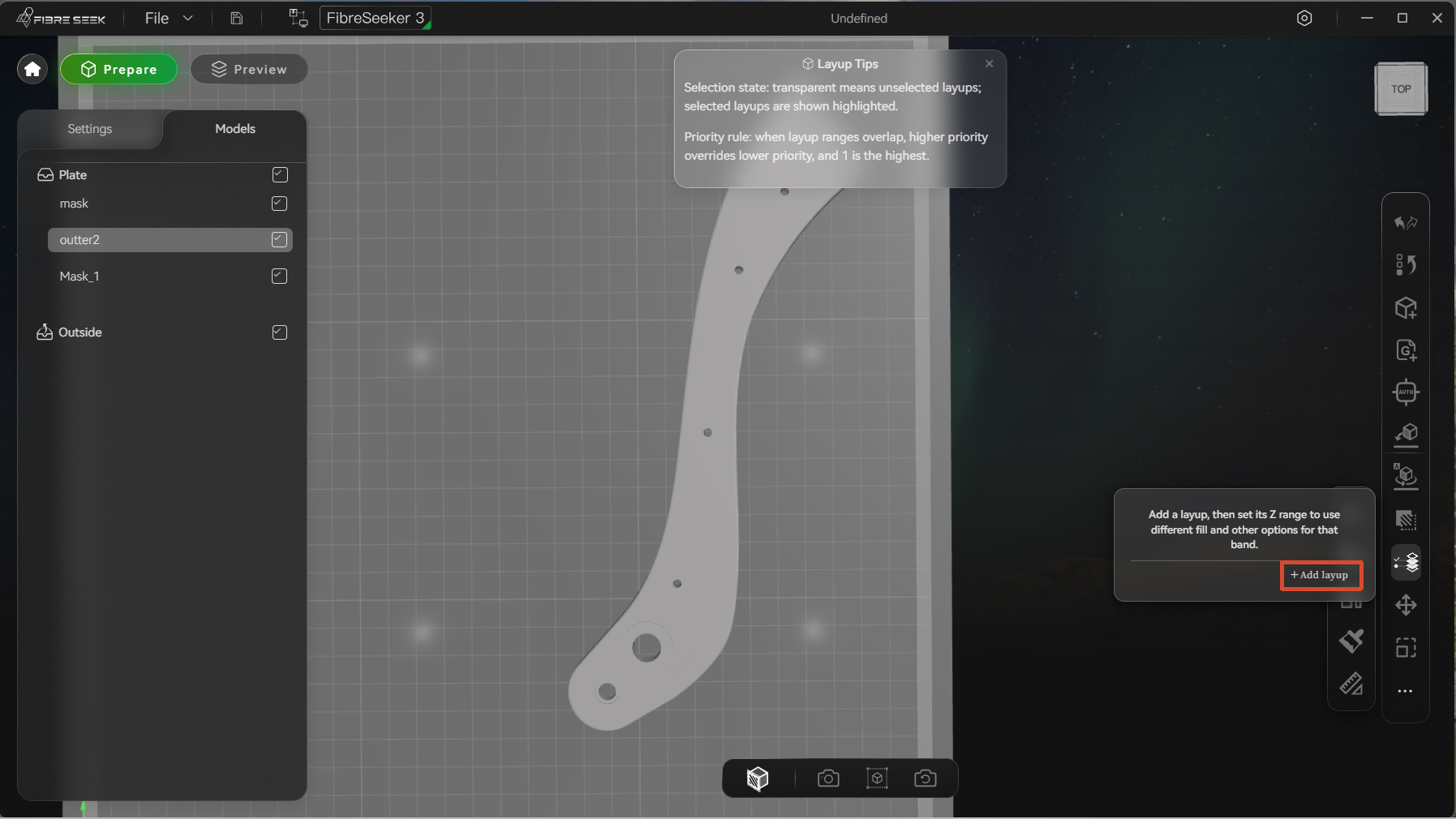
- Enter the layer range values in the input box or drag
 below the input box to adjust the range (the left side sets the minimum value and the right side sets the maximum value). In the figure below, the layer range is 0.00 — 2.23.
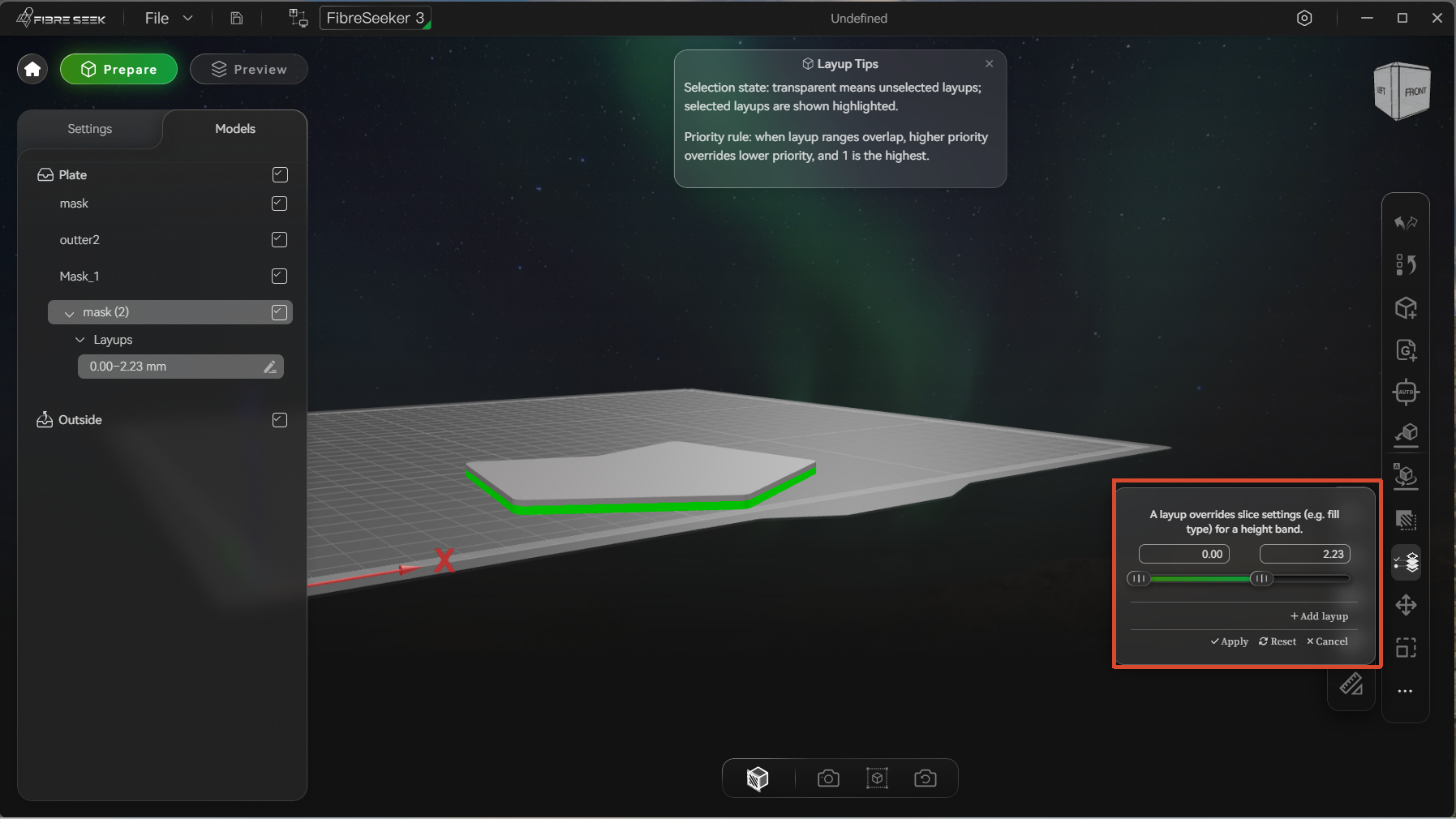
- Click Apply to confirm.
After selecting Reinforced Mode, you can also enable Generate reinforced perimeters and Generate reinforced fill, and adjust the parameters as needed.
- (Optional): Clickto the right of the layer range to access the following operations:
- External shell count: Sets the number of outer shell layers for the printed model.
- Plastic perimeters count: Sets the number of contour layers for the inner shell. This parameter directly affects the surface strength of the part.
- Fill pattern: Selects the fill pattern, including Grid, Lines, Triangles, etc. The actual patterns available are shown in the interface.
- Fill angle: Adjusts the angle of the fill pattern.
- Fill angle offset: Sets the incremental angle of the fill pattern per layer. For example, if the fill angle is 45° and this parameter is set to 30°, the first layer path will be 45°, the next layer path will increase by 30° to 75°, and so on.
- Fill density: Sets the density of the fill pattern.
¶ Printing Mode
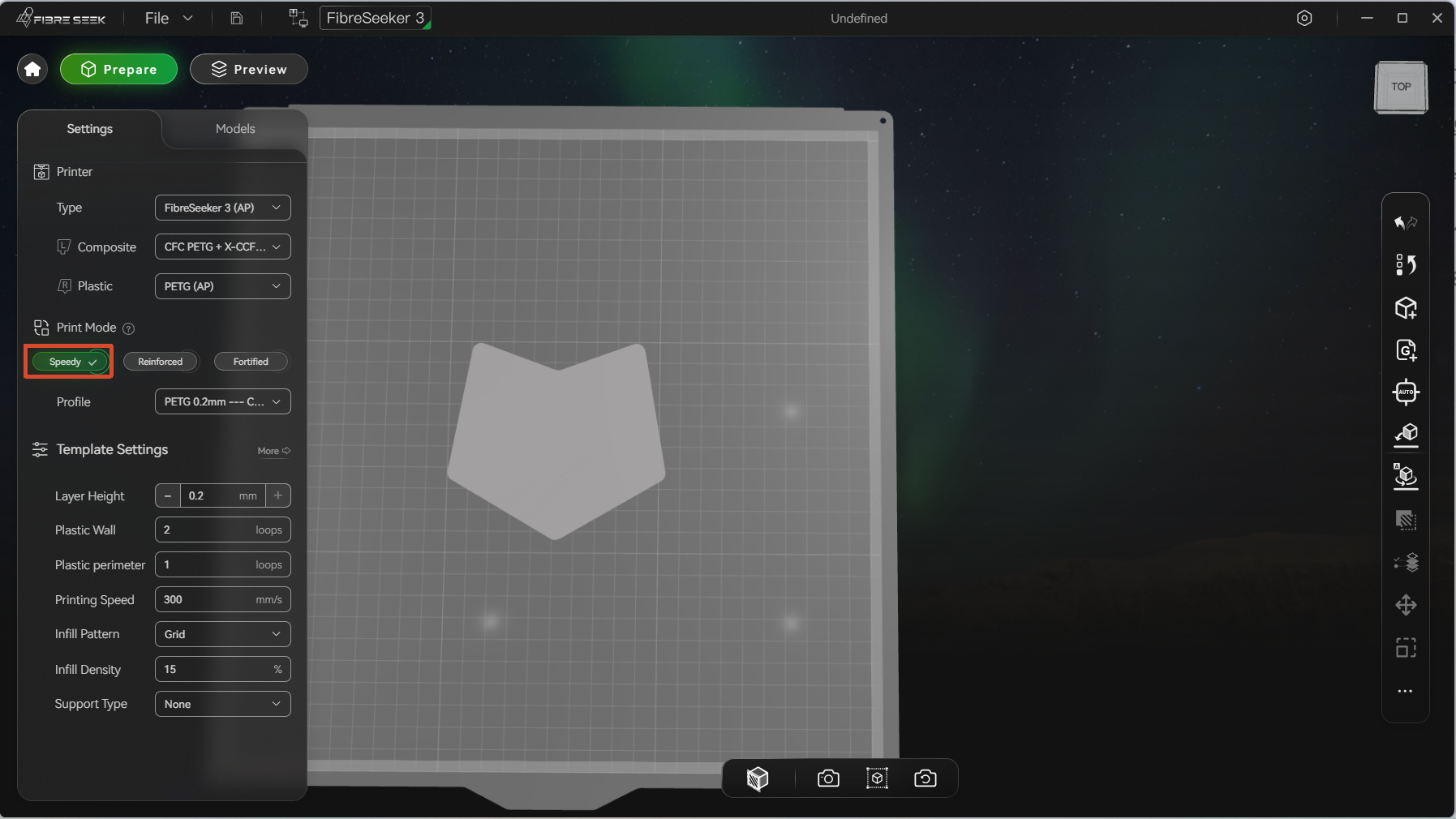
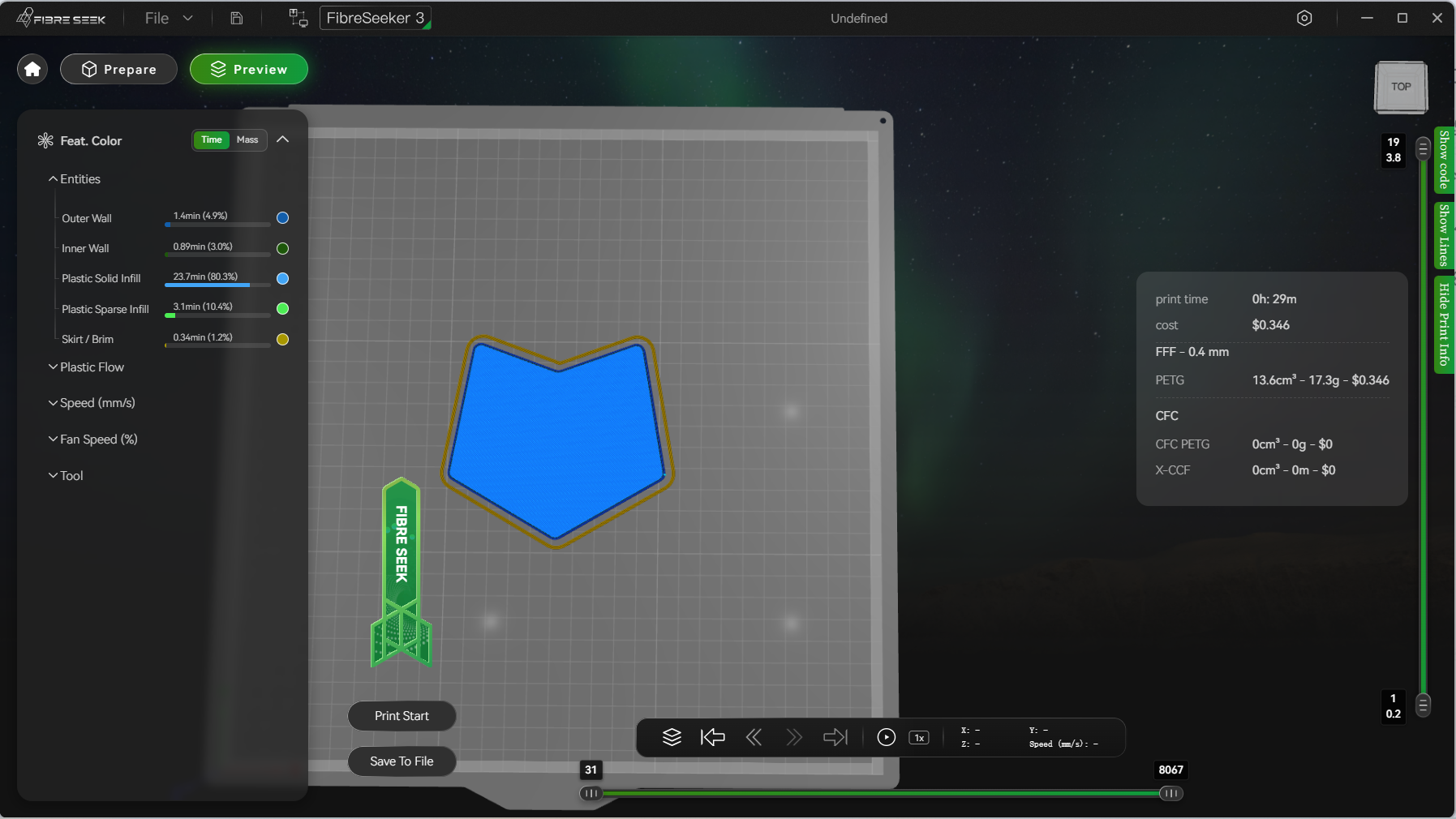
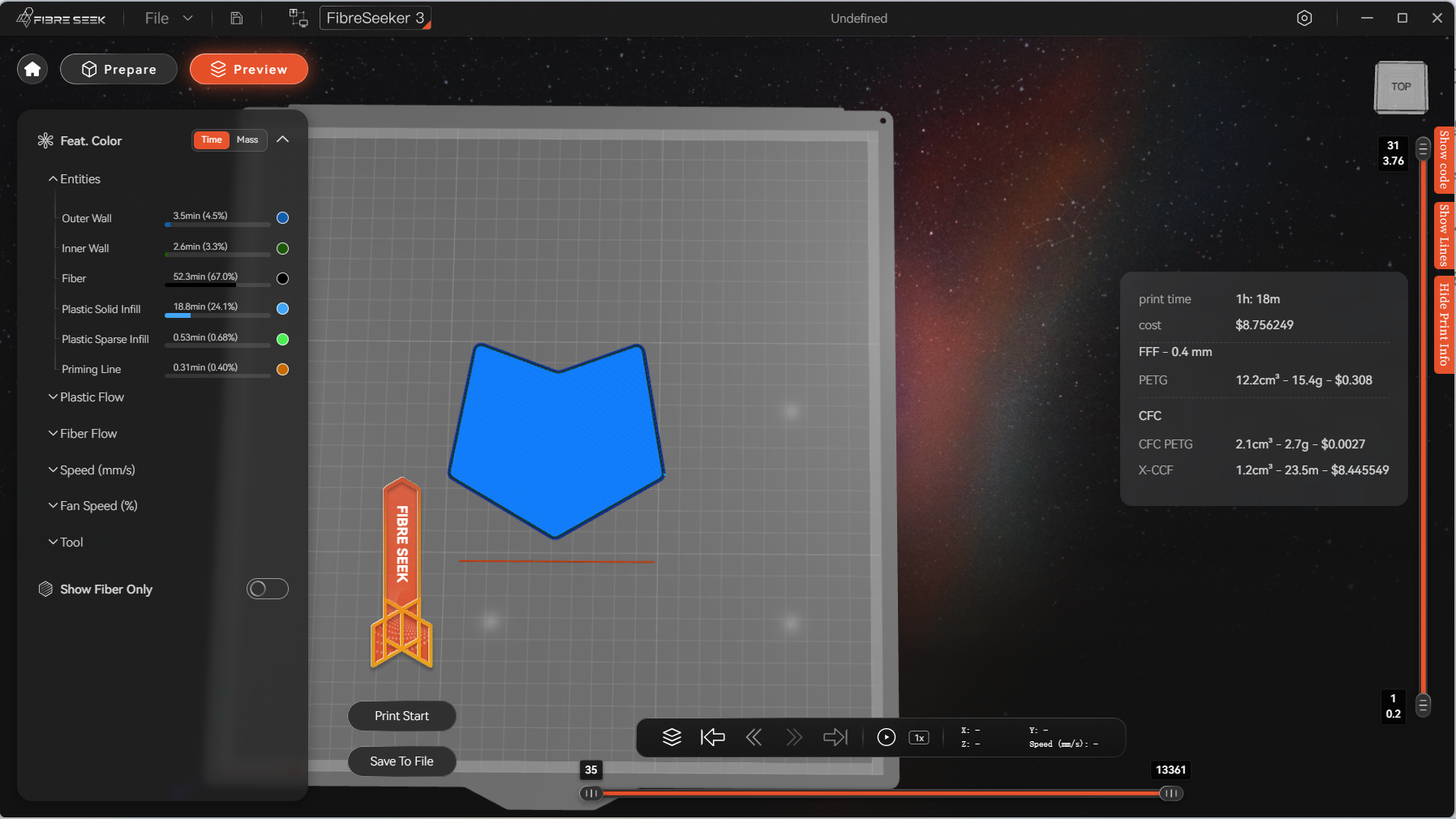
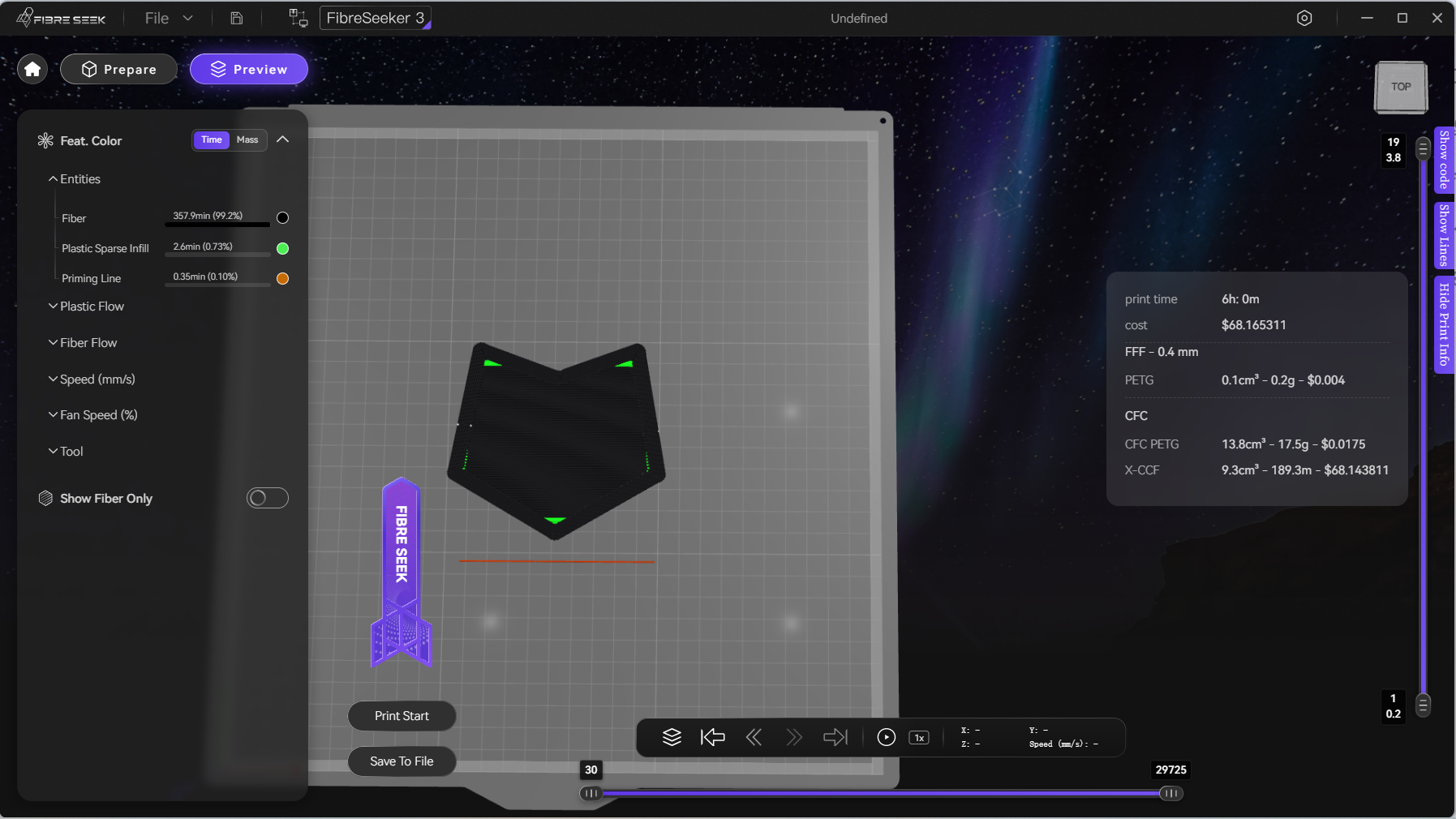
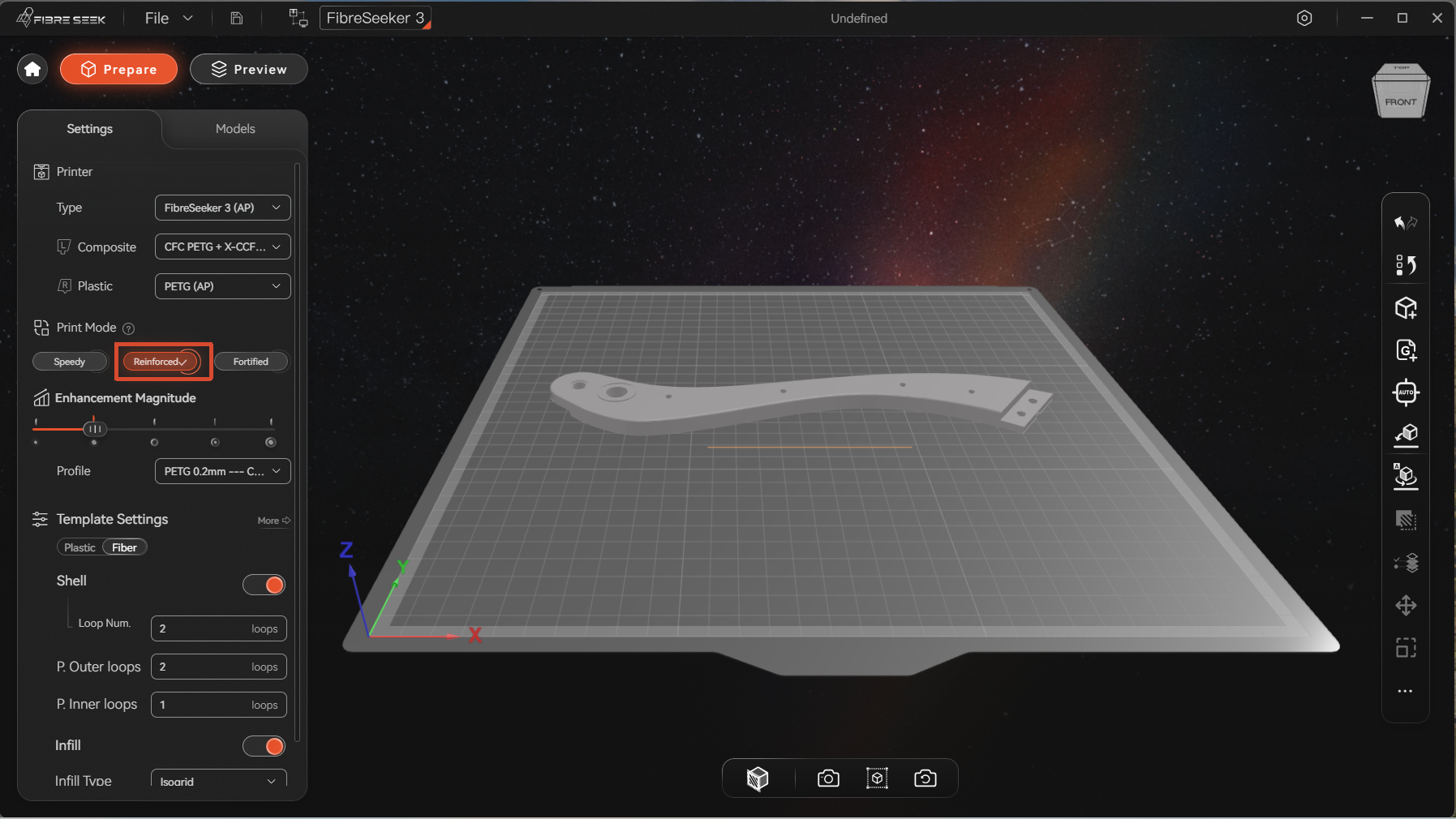
The FibreSeeker 3 3D printer supports three printing modes: Speedy, Reinforced, and Fortified.
¶ Speedy Mode
The FFF nozzle works independently, delivering faster printing speeds and higher precision, making it suitable for standard 3D printing applications.
¶ 5.2 Reinforced Mode
The CFC + FFF dual‑nozzle system works in tandem to embed a fibre framework layer inside the printed part. The material ratio can be freely adjusted to achieve a precise balance between strength, weight, and cost.
¶ 5.3 Fortified Mode
The CFC nozzle operates independently, utilizing advanced technology to produce high‑strength components with a tensile strength of up to 900 MPa.
When print length or space is insufficient, plastic infill is used.
¶ Starting print
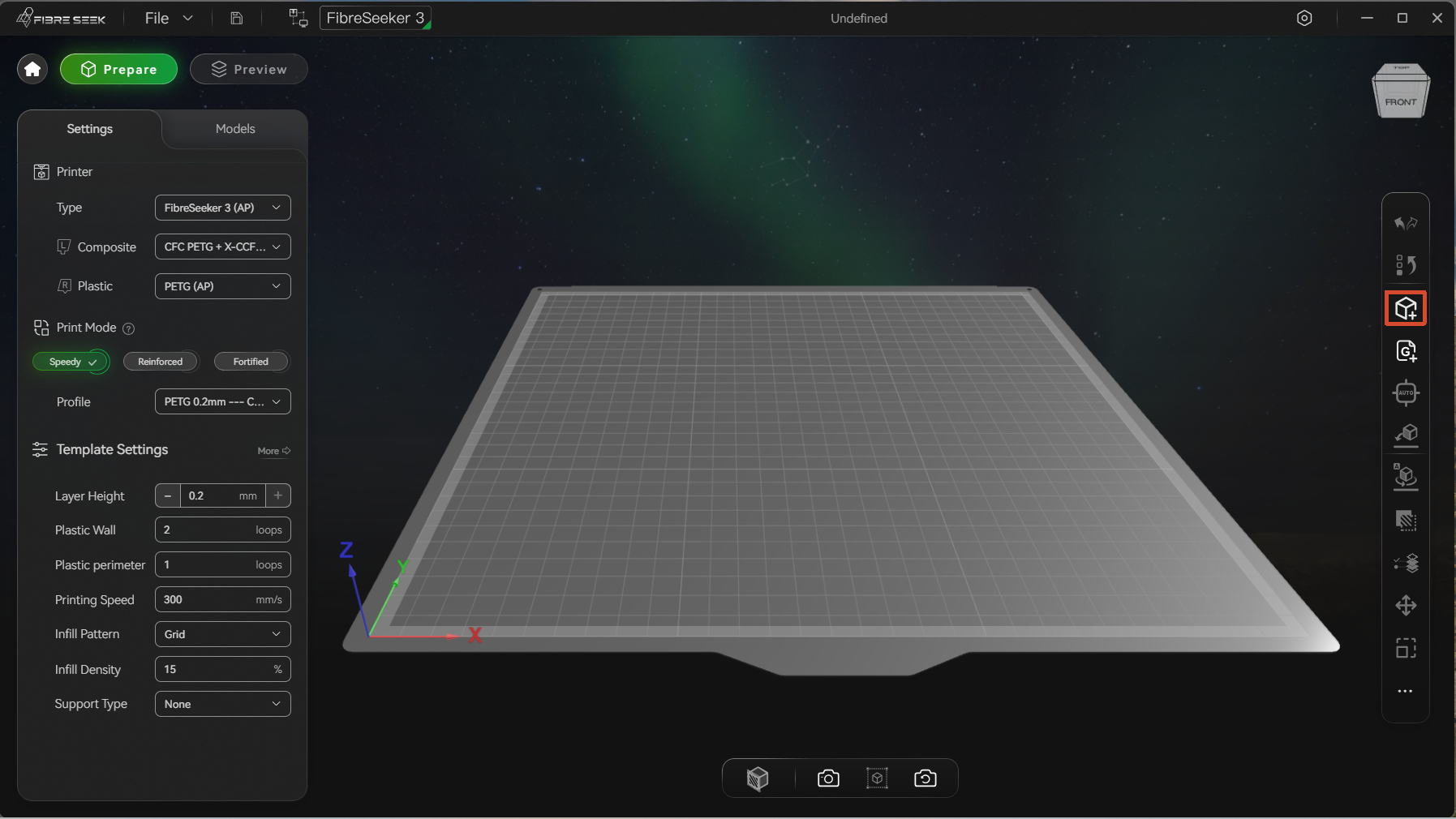
Within the slicing software, print parameters can be configured on the Template Settings area. The original parameters of built-in templates are non-editable. If you need customized template parameters, copy a built-in template first and adjust relevant print settings accordingly. For full instructions, refer to the FibreSeeker 3 User Manual.
- Rocket Slicer supports two methods for importing models:
- Click , or use the shortcut key Ctrl + O to import a slice file in the right toolbar. Supported formats include .stl, .step, .stp, and .3mf.
- Drag and drop the model file directly onto the print plate of the Rocket Slicer preparation page.
- Click
- Click , , in the right toolbar to adjust the model's position, size, and orientation.
When printing carbon fibre models, apply biomimetic principles to analyze the force‑bearing direction and select the optimal orientation accordingly.
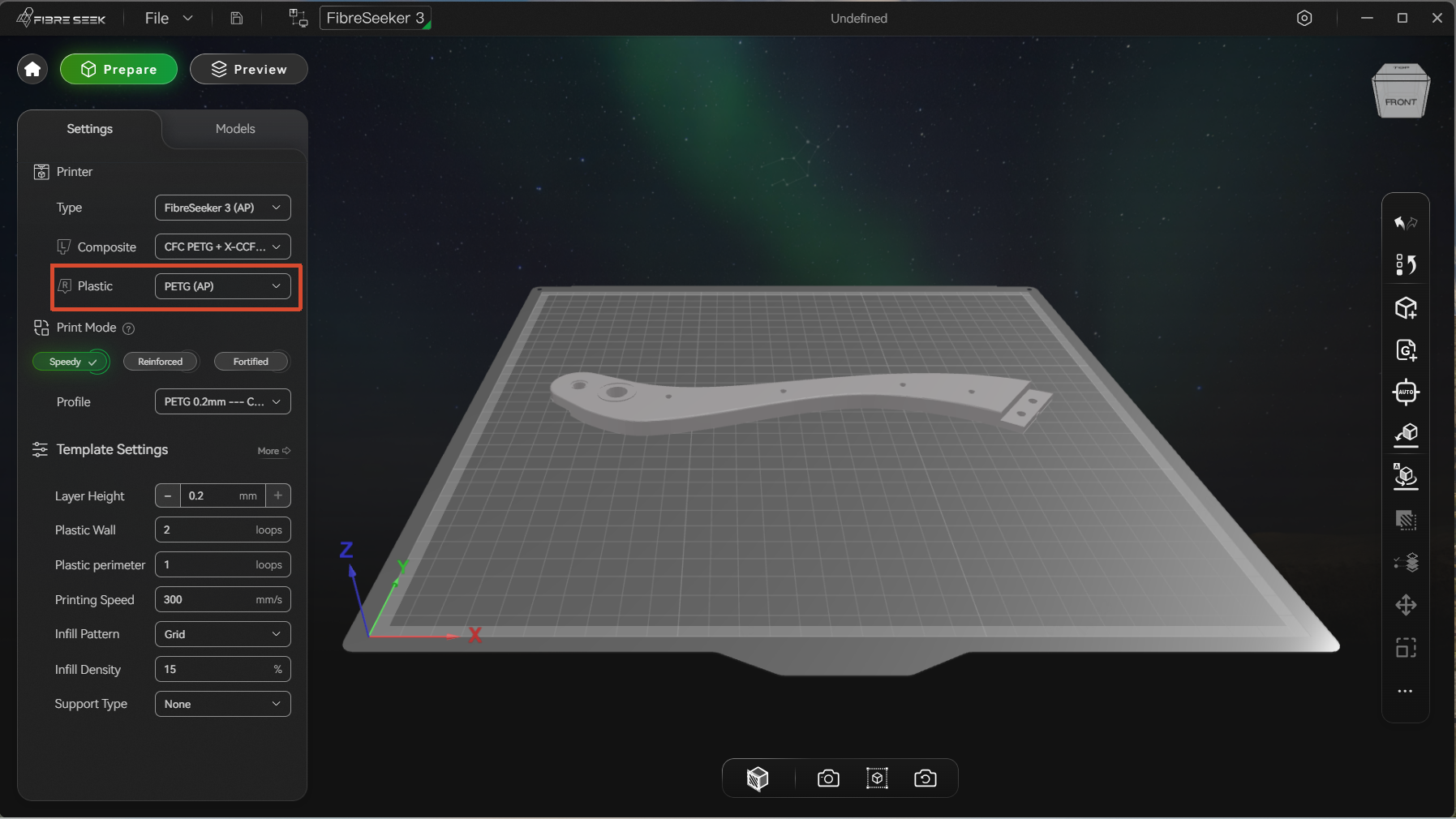
- Select the target material profile (the figure below uses plastic as an example).
- Select the desired print mode in the Print Mode section on the left toolbar. For more details, refer to 5. Printing Mode. The figure below uses Reinforced Mode as an example.
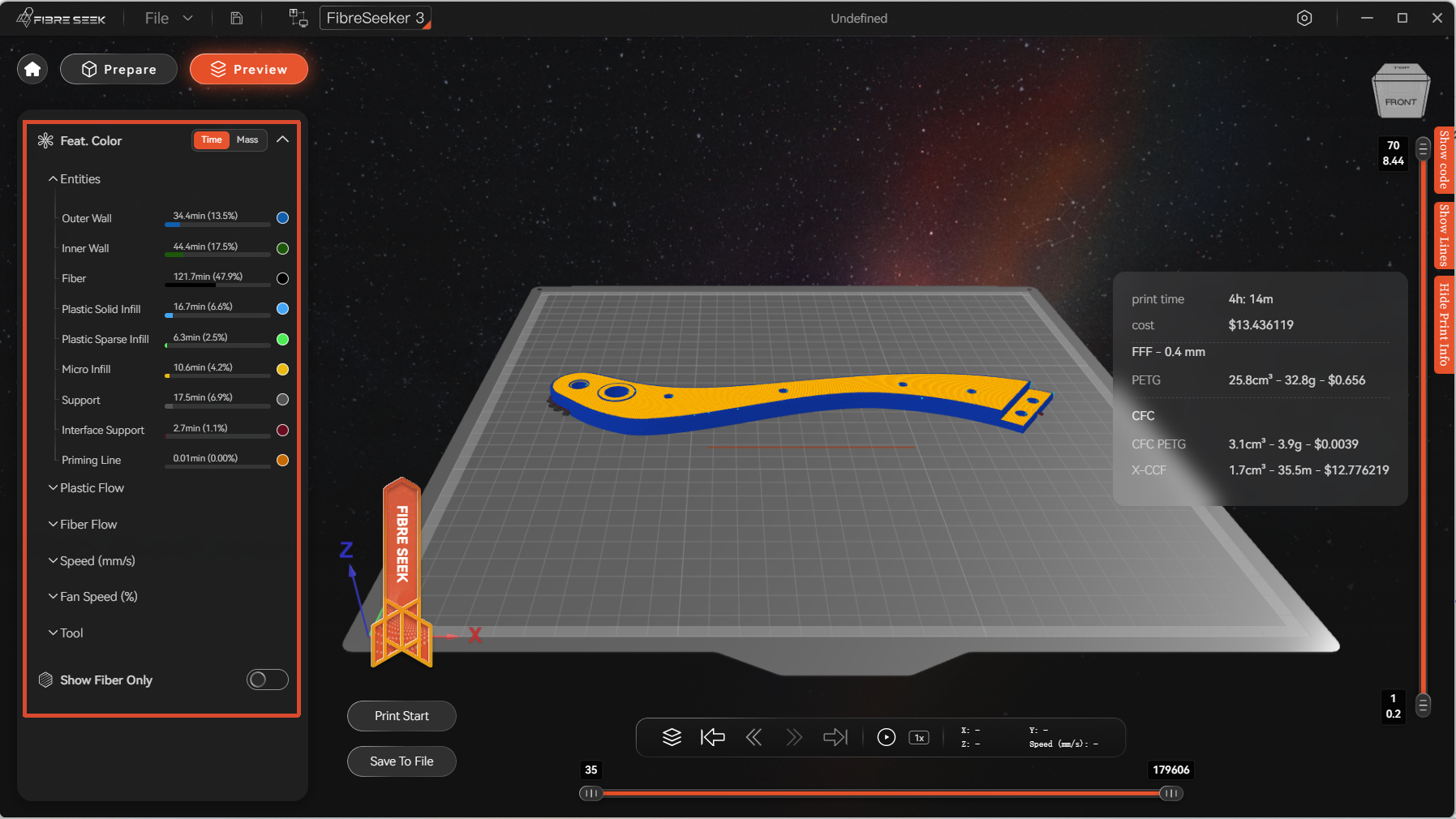
- Click Preview at the top of the left toolbar to review the print parameters of the model, as shown in the figure below.
- You can choose between the following two printing methods:
- Direct Print: After connecting the printer, click Print Start in the lower‑left corner.
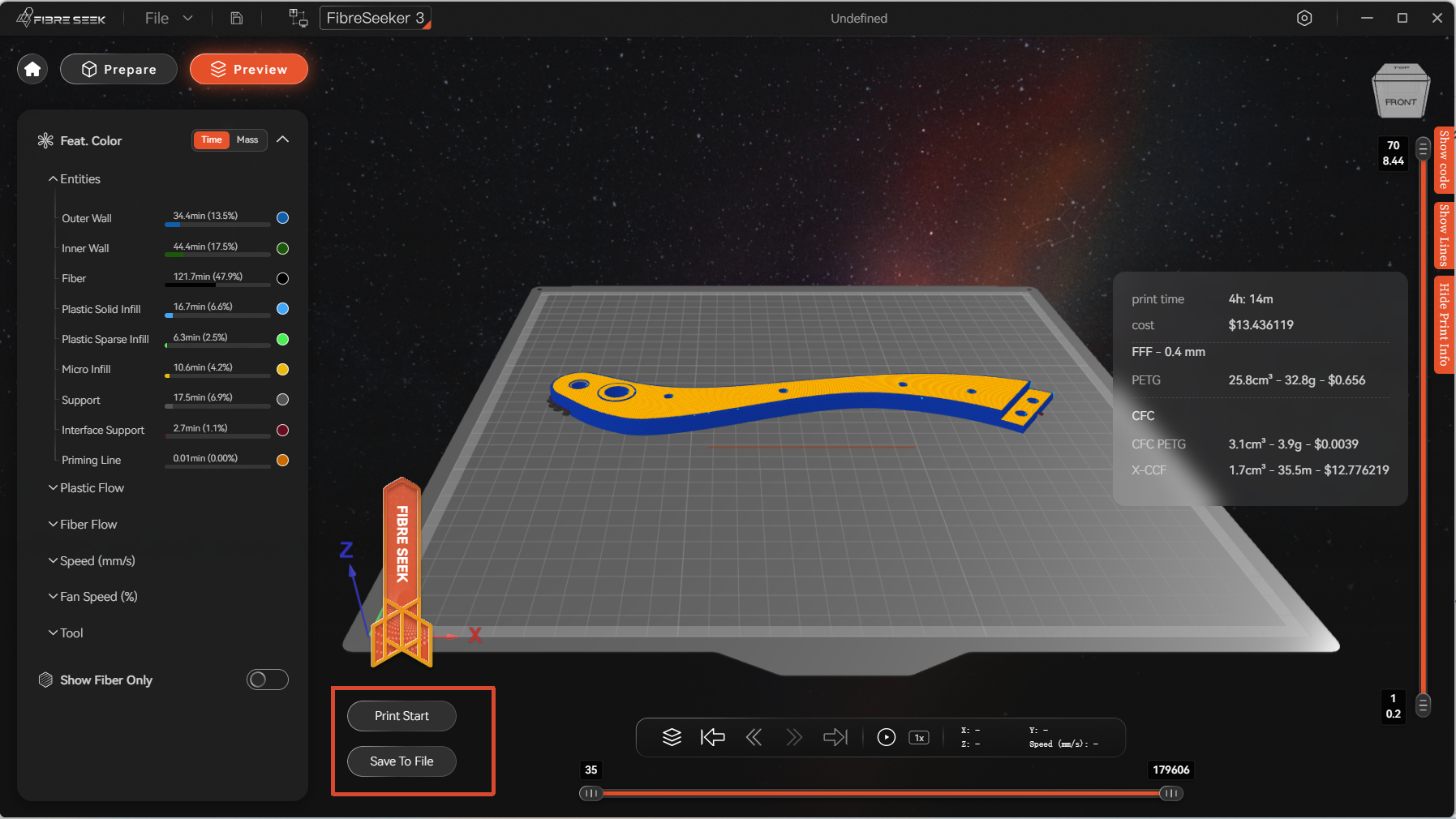
- USB Drive Transfer: When Rocket Slicer is not connected to the printer, save the model as a G‑code file on a USB drive, then insert the drive into the printer. On the printer touchscreen, tap
 > USB, then select the target model for printing.
- Direct Print: After connecting the printer, click Print Start in the lower‑left corner.